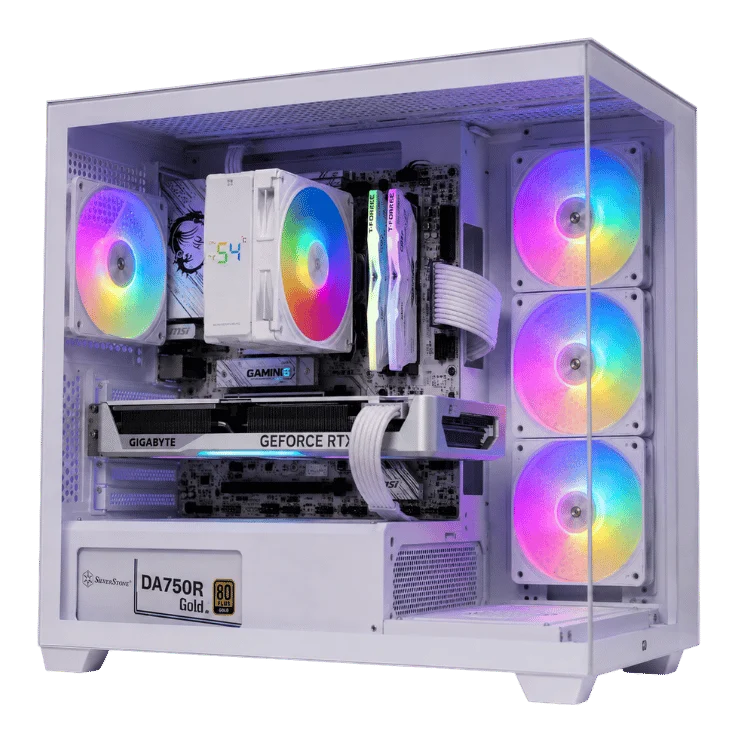
What is a GPU? It is the graphics processing unit, the chip that draws every image you see on your screen, from the Windows desktop to a fully ray-traced game world. In a gaming PC the GPU lives on a graphics card, and it is the single most important part for gaming performance. If you have ever wondered why one PC runs a game smoothly while another stutters, the answer is usually the GPU.
This beginner-friendly guide explains what a GPU does, what is inside a graphics card, which specifications actually matter, how much video memory you need, what ray tracing and DLSS mean, how to check what graphics card you have and how to choose the right one for your monitor and budget.
What is a GPU, in simple terms?
Your computer has two main processors. The CPU is a generalist. It runs Windows, your apps and the logic of a game, handling a few complex tasks very quickly. The GPU is a specialist. It contains thousands of small cores designed to do the same simple maths on huge amounts of data at once, which is exactly what drawing an image requires.
A 4K screen has more than eight million pixels, and a game might need to update all of them over a hundred times a second. Each pixel needs its colour, lighting and shading calculated. A CPU would take far too long to do that alone. A GPU splits the job across thousands of cores and finishes it in a few milliseconds.
GPU vs graphics card: what is the difference?
People use the two terms interchangeably, but they are not quite the same thing. The GPU is the chip. A graphics card is the whole add-in board that carries the GPU, along with its own memory, power delivery, cooling and display outputs.
Some processors also include a small GPU built into the chip, called integrated graphics. That is enough for the desktop, video streaming and light games. A dedicated graphics card is far more powerful and is what you need for modern gaming, video editing and 3D work.
How a GPU draws a frame
Every frame in a game goes through a series of steps, many times each second.
- The CPU prepares the scene. It works out where everything is, what the camera sees and which objects need drawing, then sends instructions to the GPU.
- Geometry is processed. The GPU positions millions of tiny triangles that make up every character, building and tree.
- Pixels are shaded. Each pixel gets its colour, texture and lighting. This is the heaviest part of the job.
- Effects are added. Shadows, reflections, fog, motion blur and other effects are applied, sometimes using ray tracing.
- The frame is sent to your monitor. Then the whole process starts again for the next frame.
The number of frames the GPU can complete each second is your frame rate, measured in FPS. Higher is smoother, up to the refresh rate of your monitor.
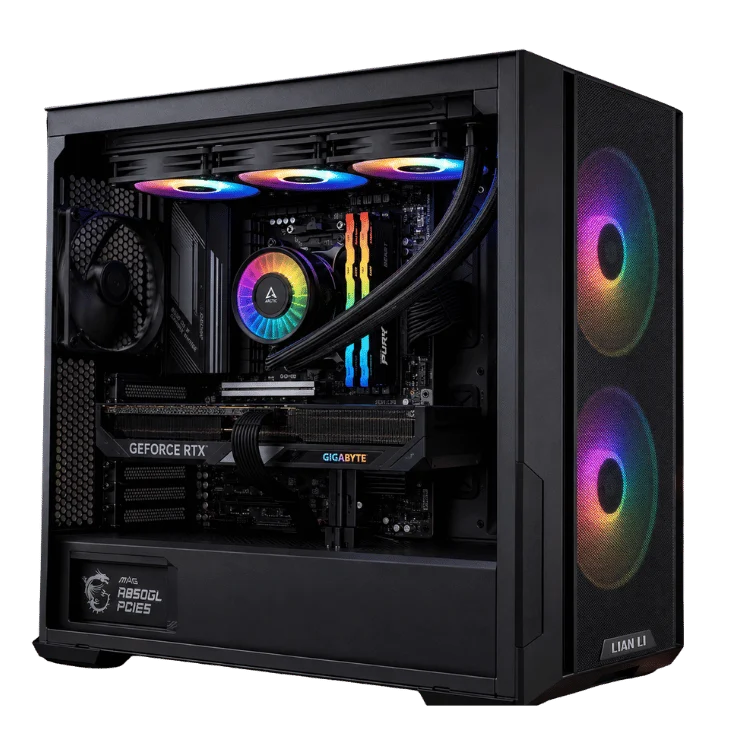
What is inside a graphics card?
- The GPU chip: the processor that does the rendering work.
- VRAM: fast video memory that stores textures, models and frame data close to the GPU.
- Power delivery: components that turn power from your PC’s power supply into the clean, stable power the GPU needs.
- Cooler: a heatsink and fans, sometimes a vapour chamber, that remove the heat the GPU produces.
- Display outputs: HDMI and DisplayPort connectors for your monitors.
- PCIe connector: the edge connector that plugs into the motherboard.
- Power connectors: most cards need extra power directly from the power supply through 8-pin or 16-pin cables.
Integrated vs dedicated graphics
Integrated graphics share system memory and power with the processor. They are efficient and cost nothing extra, which makes them ideal for office PCs, study computers and thin laptops. Modern integrated graphics can even run older and lighter games at low settings.
A dedicated card has its own memory and power budget, often hundreds of watts, which allows far higher performance. If you want to play modern games at good settings, edit video or work in 3D, you need one. Most of the systems in our desktop computers range use integrated graphics for work and study, while every system in our gaming PCs range has a dedicated card.
Graphics card specifications that matter
Spec sheets are full of numbers. These are the ones worth understanding.
Cores
NVIDIA calls them CUDA cores and AMD calls them stream processors. More cores means more work done at once. You can only compare core counts fairly within the same brand and generation, because designs differ.
Clock speed
The speed each core runs at, measured in gigahertz. Higher is better, but like core counts, clock speeds only compare fairly within the same family.
VRAM capacity
The amount of video memory, measured in gigabytes. Too little and games stutter or show blurry textures. We cover how much you need below.
Memory bandwidth
How fast data moves between the GPU and its memory. It depends on the memory type, such as GDDR7, and the width of the memory bus. Higher bandwidth helps most at high resolutions.
Power rating
Total graphics power tells you how much power the card draws under load. It decides the power supply you need and how much heat your case must remove.
Ray tracing and AI cores
Modern cards include dedicated hardware for ray tracing and for AI features such as upscaling. The newer the generation, the more capable these cores are.
How much VRAM do you need?
| Resolution | Minimum | Comfortable in 2026 |
|---|---|---|
| 1080p | 8GB | 12GB to 16GB for high textures |
| 1440p | 12GB | 16GB |
| 4K | 16GB | 16GB or more |
| AI and heavy 3D work | 16GB | 24GB to 32GB |
Memory needs grow every year as games use larger textures and more detailed worlds. If you plan to keep a card for several years, more memory is one of the best ways to make it last.
Ray tracing explained
Traditional rendering uses shortcuts to approximate light. Ray tracing simulates how rays of light actually bounce around a scene, producing realistic reflections, shadows and lighting. Path tracing takes it further, simulating many bounces for every pixel.
The results can be stunning, but ray tracing is very demanding. Every modern graphics card can do it, but how well it performs depends heavily on the card’s dedicated ray tracing hardware and on upscaling technology.
Upscaling and frame generation: DLSS and FSR
Upscaling lets a GPU render a game at a lower resolution and then rebuild a sharp, full-resolution image using AI or clever algorithms. The result looks close to native resolution but runs much faster.
- NVIDIA DLSS 4: available on GeForce RTX cards. RTX 50 Series cards add Multi Frame Generation, which inserts up to three AI-generated frames for each rendered frame.
- AMD FSR 4: AMD’s latest AI-based upscaler for Radeon RX 9000 cards, which has closed much of the image quality gap with DLSS.
- Intel XeSS: Intel’s upscaler, which also runs on many cards from other brands.
Frame generation works best when the base frame rate is already reasonable. It makes smooth games smoother, but it cannot rescue a game that is struggling.
NVIDIA vs AMD vs Intel
NVIDIA GeForce
NVIDIA leads in ray tracing performance and its DLSS technology is the most widely supported upscaler in games. Its cards are also popular for streaming, video editing and AI work thanks to strong software support. The current range is the GeForce RTX 50 Series, which you can explore on NVIDIA’s RTX 50 Series page.
AMD Radeon
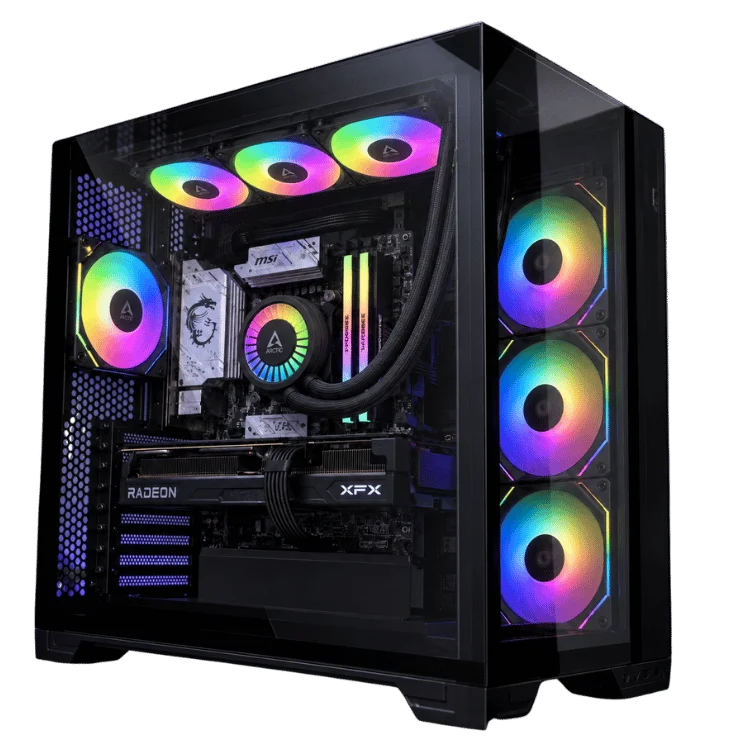
AMD’s Radeon RX 9000 Series offers excellent performance in traditional rasterised games and often more memory for the money. FSR 4 brings much better upscaling than earlier versions. Ray tracing has improved but still trails NVIDIA.
Intel Arc
Intel’s Arc cards offer good value at the budget end, with solid features for the price. Driver support has improved a lot, though NVIDIA and AMD still have broader game compatibility.
Which graphics card for your monitor?
| Target | NVIDIA | AMD |
|---|---|---|
| 1080p, budget | RTX 5060 | RX 9060 XT |
| 1080p high refresh or 1440p | RTX 5060 Ti 16GB, RTX 5070 | RX 9060 XT 16GB, RX 9070 |
| 1440p high refresh | RTX 5070 Ti | RX 9070 XT |
| 4K | RTX 5080 | RX 9070 XT with upscaling |
| 4K maximum settings, AI | RTX 5090 | No direct equivalent |
Our detailed guides cover each tier: RTX 5060 vs RTX 5060 Ti, RTX 5070 vs RTX 5070 Ti, the RTX 5080 and the RTX 5090.
What graphics card do I have? How to check in Windows
If you are asking yourself “what graphics card do I have”, Windows can tell you in under a minute. Here are four ways, from quickest to most detailed.
Method 1: Task Manager
- Press Ctrl, Shift and Esc to open Task Manager.
- Click the Performance tab.
- Select GPU 0 (and GPU 1 if you have both integrated and dedicated graphics). The card’s name appears at the top right, with memory and usage below.
Method 2: Display settings
- Right-click the desktop and choose Display settings.
- Scroll down and select Advanced display.
- Your graphics card is listed next to the display it drives.
Method 3: DirectX Diagnostic Tool
- Press the Windows key and R, type dxdiag and press Enter.
- Open the Display tab to see the card’s name, manufacturer, memory and driver version.
Method 4: Device Manager
- Right-click the Start button and select Device Manager.
- Expand Display adapters to see every graphics device in the PC.
Free tools such as HWiNFO also show live temperatures and clock speeds. Our guide on checking CPU temperature shows how to use them.
Is your GPU the bottleneck?
A bottleneck is the part holding the rest of the system back. To check, open a game, turn on an overlay such as the NVIDIA app’s performance overlay, and watch GPU usage.
- GPU usage near 95 to 100 per cent: the graphics card is working flat out. A faster card would raise your frame rate.
- GPU usage well below 90 per cent with low FPS: something else, often the processor, is holding things back.
Processor limits are most common at 1080p and in competitive games at very high frame rates. Our CPU cache explainer explains why some processors handle this far better than others.
Signs it is time to upgrade
- New games run below 60 FPS even at low or medium settings.
- Games warn you about video memory, or textures look blurry and pop in late.
- Your card does not support features you want, such as DLSS frame generation or hardware ray tracing.
- Driver support for your card has ended.
- You have bought a higher resolution or higher refresh rate monitor.
Upgrading a graphics card: what to check first
- Power supply: check its wattage, quality and connectors against the new card’s requirements.
- Case clearance: modern cards are long and thick. Measure before you buy.
- Processor: an older CPU can hold back a new GPU, especially at 1080p.
- Motherboard slot: any PCIe x16 slot works, but older boards run at lower speeds, which can affect some cards.
- Drivers: remove old drivers cleanly when switching between NVIDIA and AMD.
If several of these need changing, a complete new system is often better value than piecemeal upgrades.
Keeping your graphics card healthy
- Install driver updates through the NVIDIA app or AMD Software rather than Windows Update.
- Clean dust from filters and fans every few months.
- Keep an eye on temperatures in summer. Most cards are comfortable up to the low 80s Celsius under load.
- Use a frame rate cap to reduce heat, noise and power use in lighter games.
- Support heavy cards with a bracket to prevent sag over time.
GPUs beyond gaming
Graphics cards are not just for games. Their parallel processing power speeds up video editing, 3D rendering, live streaming and especially AI. Running local AI models and image generators depends heavily on GPU memory, which is why large-memory cards are in such demand. If your PC is mainly for this kind of work, our workstations are configured for creative and professional software.
Graphics card buying mistakes to avoid
- Buying on memory size alone. A cheap graphics card with lots of slow memory can be slower than a newer card with less. Compare real performance for your resolution, not just the gigabytes on the box.
- Ignoring the power supply. A powerful card on a weak or low-quality power supply can cause crashes, black screens and random restarts.
- Forgetting the monitor. A high-end card on a 60Hz 1080p screen wastes most of its potential. Match the card to the display.
- Overlooking the processor. An old CPU can cap your frame rate no matter how fast the GPU is.
- Not checking the size. Large coolers can be over 330mm long and take up three or four slots. Check your case first.
Laptop GPUs vs desktop graphics cards
Laptop GPUs often share names with desktop parts, but they are not the same. They run at much lower power to suit a slim chassis and a battery, and some use smaller chips and less memory. A laptop with an RTX 5070, for example, performs well below a desktop RTX 5070.
That does not make laptops a bad choice. If you need to game or work on the move, a gaming laptop is a fantastic option. Just compare laptop performance with other laptops, not with desktop cards. Our gaming laptops range lists the GPU in every model.
Prebuilt PC or a standalone graphics card?
If your current PC is fairly recent and has a good power supply, upgrading just the graphics card can be the best-value move. If the PC is older, the processor, memory, power supply and case may all hold a new card back, and replacing several parts quickly adds up.
In that situation a complete prebuilt system often works out better. Every part is chosen to work together, the build is tested as a whole and the entire PC is covered by one warranty. Our team is happy to look at your current specs and tell you honestly which route makes more sense.
Our gaming PCs by graphics card
Every gaming PC we sell lists its exact graphics card, so you can match it to the advice above.
- RTX 5060 gaming PC: great-value 1080p gaming.
- RX 9070 XT gaming PC: strong 1440p performance with 16GB of memory.
- RTX 5080 gaming PC: smooth 4K gaming with ray tracing.
- RX 7900 XTX gaming PC: 24GB of memory for high-resolution gaming.
Compare every option in our NVIDIA gaming PCs and Radeon gaming PCs ranges.
Quick GPU glossary
- FPS: frames per second, the number of images drawn each second.
- 1% lows: the slowest frames in a test, a good measure of how smooth a game feels.
- TGP: total graphics power, the card’s power draw under load.
- GDDR7: the latest type of graphics memory, used on RTX 50 Series cards.
- Rasterisation: the traditional way games draw images, without ray tracing.
- Driver: the software that lets Windows and games talk to the GPU. Keep it updated.
GPU FAQ
What is a GPU used for besides gaming?
Video editing, 3D rendering, streaming, scientific computing and AI all use GPUs to speed up work that can be split into many small tasks.
Is a graphics card the same as a GPU?
Not exactly. The GPU is the chip. The graphics card is the complete board, including memory, power delivery, cooling and outputs.
Can I add a graphics card to any PC?
Most desktop PCs with a PCIe x16 slot can take one, but small office PCs often lack the space and power supply. Check both before buying.
How long does a graphics card last?
Physically, many years. In performance terms, most gamers upgrade every three to five years as games become more demanding.
Do I need a graphics card for office work?
No. Integrated graphics handle office apps, browsing, video calls and streaming perfectly well.