This laptop buying guide is for anyone who has stared at a wall of near-identical specifications and wondered what actually matters. Laptops are harder to choose than desktops, because you cannot upgrade most of them later and you live with every compromise: the screen, the keyboard, the weight and the battery. Choose well and a laptop can serve you happily for five years. Choose badly and it will frustrate you within months.
We cover how to match a laptop to the way you will use it, then explain processors, memory, storage, screens, battery life, ports and build quality in plain English. We also look at when a 2 in 1 laptop or a touch screen laptop is worth it, what to look for in student, business and gaming laptops, and the checks to make before you buy in Australia.
Laptop or desktop?
Before you commit, it is worth asking whether a laptop is the right tool at all. If you will almost always work at the same desk, a desktop gives you more performance for the money, a larger screen, a full-size keyboard and easy upgrades. Many people find the best combination is a desktop at home for heavy work or gaming, plus a light, affordable laptop for study or travel. If you need one device that does everything and goes everywhere, a laptop is the answer, but choose its size and weight with that daily carry in mind.
Step 1: Decide how you will use it
Everything in this laptop buying guide flows from this question. Be honest about what you will do most of the time.
- Study and everyday use: web browsing, documents, video calls and streaming. Prioritise battery life, weight and a comfortable keyboard.
- Business and professional work: spreadsheets, multitasking and lots of meetings. Prioritise reliability, security features, a good webcam and a large, sharp screen.
- Creative work: photo and video editing. Prioritise a colour-accurate screen, more memory and a stronger processor or graphics.
- Gaming: prioritise a dedicated graphics card, good cooling and a high refresh rate screen, and accept more weight and less battery life.
Step 2: Choose a size and weight
| Screen size | Typical weight | Best for |
|---|---|---|
| 13 to 14 inches | About 1.0 to 1.5kg | Carrying every day, travel, students |
| 15 to 16 inches | About 1.6 to 2.2kg | A balance of screen space and portability |
| 17 to 18 inches | 2.5kg and above | Desktop replacement, gaming, creative work |
If you will carry the laptop daily, every few hundred grams matters. If it will mostly sit on a desk, a larger screen is easier on the eyes.
Step 3: Pick the right processor
Modern laptop processors are very capable. For study and office work, an Intel Core Ultra 5, Intel Core i5 or AMD Ryzen 5 is plenty. Step up to a Core Ultra 7, Core i7 or Ryzen 7 for heavier multitasking and creative work. Many recent chips also include an NPU, a small AI processor that powers features such as background blur and live captions efficiently.
Some laptops use Qualcomm Snapdragon X processors running Windows on Arm. They offer excellent battery life, but a small number of older apps and games may not run or may run more slowly. Check that the software you rely on is supported.
Step 4: Get enough memory
Many laptops have memory soldered to the motherboard, so you cannot add more later. That makes this one of the most important decisions in any laptop buying guide. 8GB is now the bare minimum and will feel slow quickly. We recommend 16GB for most people and 32GB for creative work, heavy multitasking or gaming laptops.
Step 5: Choose your storage
Every laptop should have an SSD. 256GB fills up quickly once Windows, apps and updates are installed, so 512GB is our recommended minimum, and 1TB is better if you keep photos, videos or games on the laptop. Cloud storage helps, but local space still matters.
Windows 11 and Copilot+ PCs
Every new Windows laptop ships with Windows 11. Some carry a Copilot+ PC badge, which means they include a powerful NPU for on-device AI features such as live captions with translation, improved video call effects and smarter search. These features are useful but not essential, so treat them as a bonus rather than a deciding factor. The more important point in any laptop buying guide in 2026 is to avoid older laptops that cannot run Windows 11, because Windows 10 no longer receives security updates.
Integrated or dedicated graphics?
Most everyday laptops use graphics built into the processor. Modern integrated graphics handle video playback, multiple displays, light photo editing and older or lighter games well. If you play modern games, edit video seriously or work in 3D, you need a laptop with a dedicated graphics card. Dedicated graphics add weight, heat and cost, and reduce battery life, so only pay for them if you will use them.
Wi-Fi, Bluetooth and connectivity
Look for Wi-Fi 6E or Wi-Fi 7 for fast, reliable wireless connections on modern routers, especially in busy apartments and campuses. Bluetooth 5.3 or newer connects headphones, mice and keyboards reliably. If you plan to connect to an external monitor at your desk, make sure the USB-C port supports DisplayPort output, or that the laptop has an HDMI port.
Step 6: Look closely at the screen
You look at the screen every minute you use the laptop, so it deserves careful attention.
Resolution
Full HD (1920 x 1080) or 1920 x 1200 is fine on 13 to 15-inch screens. Higher resolutions such as 2.5K or 2.8K look noticeably sharper and make text crisper.
Panel type
IPS panels offer good colours and viewing angles. OLED panels deliver deep blacks and vivid colours, ideal for media and creative work. Avoid older TN panels with poor viewing angles.
Brightness
Look for at least 300 nits for indoor use, and 400 or more if you work near windows or outdoors. Cheap laptops often have dim screens that are hard to read.
Refresh rate
A 90Hz to 120Hz screen makes scrolling feel smoother. For gaming laptops, 144Hz or higher is the standard.
Step 7: Decide on a touch screen laptop
A touch screen laptop lets you tap, swipe, pinch and scroll directly on the display. It is handy for browsing, reading and quick navigation, and essential for drawing or handwriting with a stylus. The downsides are a glossy screen that can reflect light, slightly more weight and a little less battery life. If you mainly type and use a mouse, a non-touch model may suit you better. If you like using a phone or tablet, a touch screen laptop will feel natural.
Step 8: Consider a 2 in 1 laptop
A 2 in 1 laptop works as both a laptop and a tablet. There are two main designs.
- Convertible: the screen folds all the way back on a 360-degree hinge, so you can use it as a tablet, in tent mode for watching video, or as a normal laptop. Convertibles feel like regular laptops when typing.
- Detachable: the screen separates from the keyboard to become a standalone tablet. They are lighter as tablets but less stable on your lap.
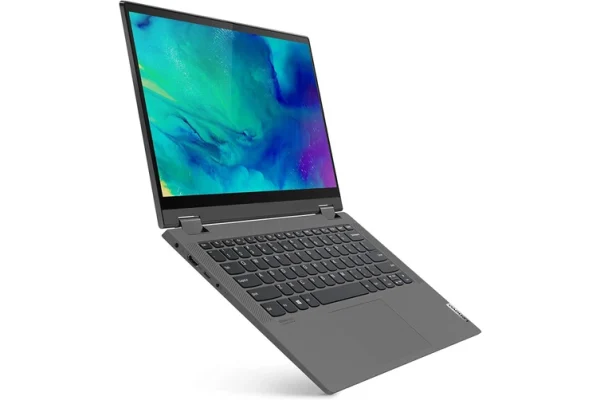
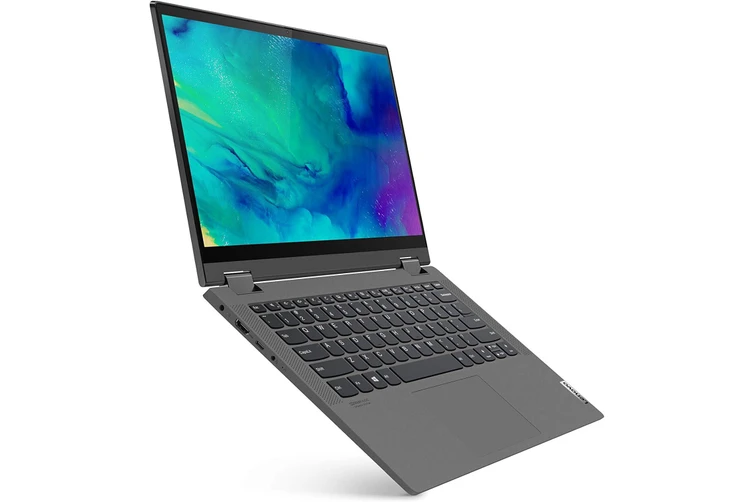
A 2 in 1 laptop is brilliant for students who take handwritten notes, people who sketch or annotate documents, and anyone who wants a tablet for reading and streaming without buying a second device. Every 2 in 1 laptop includes a touch screen, and many support an active stylus. Our Lenovo IdeaPad Flex 5 is a popular convertible.
Step 9: Check battery life realistically
Manufacturer battery claims are measured under light, ideal conditions. Expect real-world results to be lower, especially with the screen bright and many browser tabs open. For study and work, look for laptops reviewed at eight hours or more in mixed use. Gaming laptops typically last two to five hours away from the charger when not gaming, and far less while gaming.
Step 10: Count the ports
Thin laptops often drop ports. Make sure the laptop has what you need: USB-C with charging and display support, at least one USB-A port for older accessories, HDMI for presentations and TVs, a headphone jack and, if you need it, an SD card reader or Ethernet port. Thunderbolt or USB4 ports add fast external storage and docking.
Step 11: Try the keyboard, trackpad and webcam
You will type thousands of words on the keyboard, so comfort matters. Look for good key travel, a backlight and a large, smooth trackpad. With so many video calls, a 1080p webcam and decent microphones are worth having. A privacy shutter is a nice extra.
Step 12: Check build quality and warranty
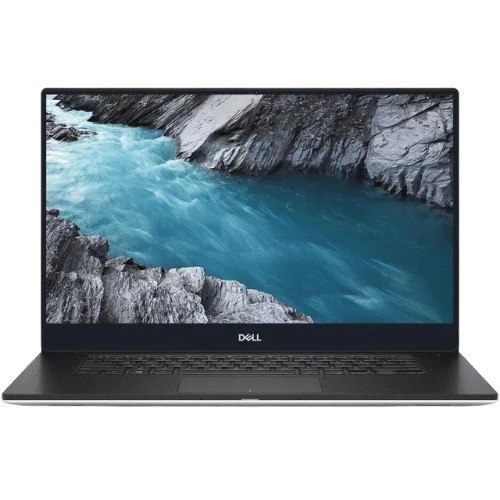
A sturdy hinge, a rigid chassis and a keyboard deck that does not flex are signs of good build quality. Check the warranty length and what it covers, and buy from a seller that offers local support. Business models such as the Dell Latitude 5430 come from ranges known for durability, and our refurbished Dell XPS 13 9350 shows how well premium laptops can be restored.
Laptop buying guide by type of buyer
Students
Prioritise light weight, long battery life, 16GB of memory and a comfortable keyboard. A 2 in 1 laptop with a stylus is excellent for note-taking. See our laptops for students range.
Business users
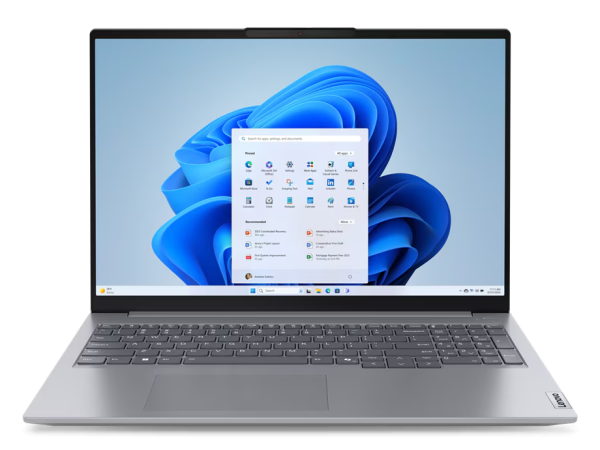
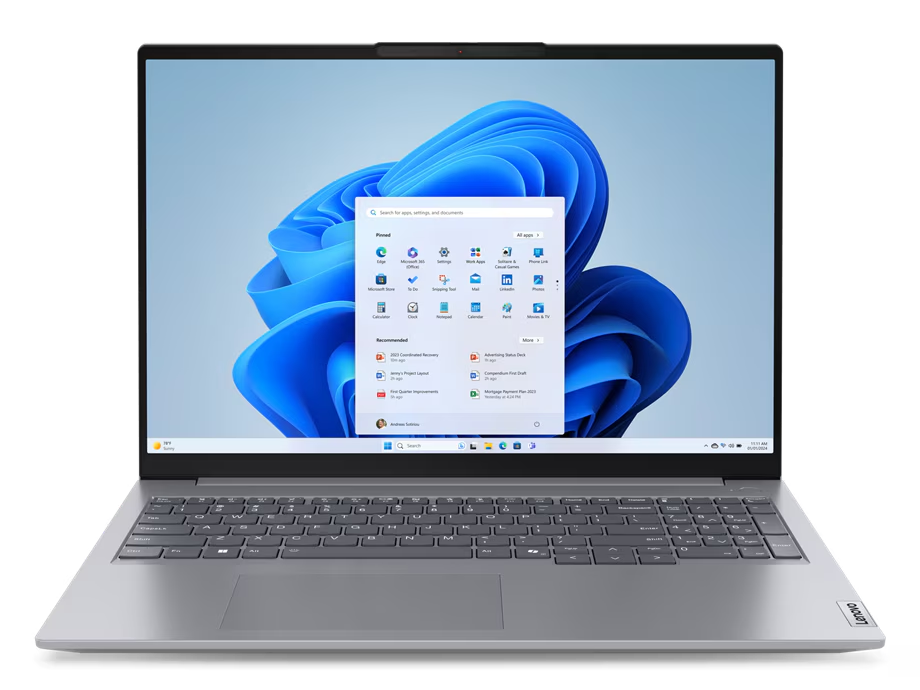
Look for business-grade models with strong build quality, security features such as fingerprint readers and TPM chips, good webcams and plenty of ports. Our Lenovo ThinkBook 16 G7 is designed for productive workdays.
Creators
Choose a colour-accurate screen, 32GB of memory, a fast processor and, for video editing, dedicated graphics.
Gamers
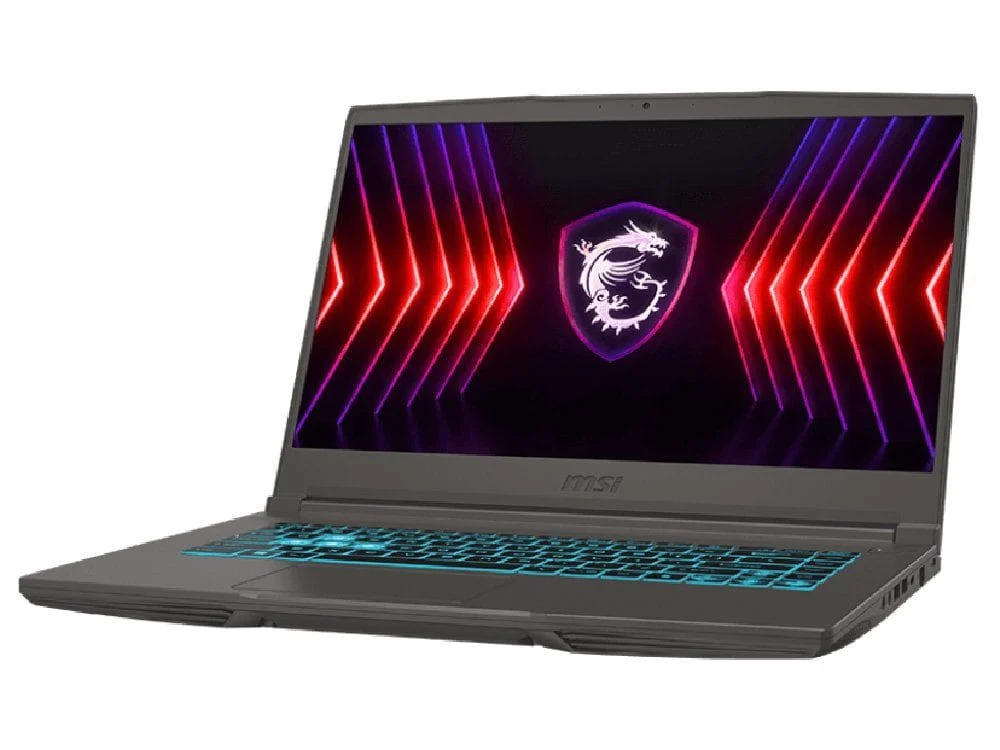
A gaming laptop needs a dedicated graphics card, good cooling and a high refresh rate screen. Graphics performance depends heavily on the power the laptop allows the GPU, so compare reviews rather than just model names. Our gaming laptops range lists the graphics card in every model, and our GPU guide explains why laptop and desktop chips differ.
Security and privacy features
Laptops travel, so security matters more than on a desktop. A fingerprint reader or infrared camera for Windows Hello makes signing in fast and secure. A TPM chip enables BitLocker drive encryption, which protects your files if the laptop is lost or stolen. A physical webcam shutter gives peace of mind on calls. Business models often add remote management and stronger chassis, which is why they are popular with organisations and with buyers of refurbished laptops.
Setting up a new laptop
- Charge it fully and connect to Wi-Fi.
- Sign in with a Microsoft account to sync settings and enable device recovery features.
- Run Windows Update repeatedly until no more updates are offered, then install the manufacturer’s driver updates.
- Remove any trial software you do not need.
- Turn on battery care mode if the laptop offers it.
- Set up Windows Hello sign-in and BitLocker if available.
- Back up your files from day one with OneDrive or an external drive.
Half an hour of setup gives you a faster, safer laptop that is ready for years of use.
New, budget or refurbished?
If your budget is tight, you have two good options. A new budget laptop gives you a fresh warranty and the latest software, while a quality refurbished business laptop can offer better build quality for similar money. Our cheap laptop guide and refurbished laptop guide compare both routes in detail.
Buying a laptop in Australia
Check that the laptop is an Australian model with a local warranty and an Australian power adapter. Grey imports can be cheaper but may have limited support. Australian consumer guarantees apply to every purchase, as explained by the ACCC, but a local seller with clear warranty terms makes any claim far simpler.
Living with a 2 in 1 laptop
A 2 in 1 laptop shines in daily life. In laptop mode it handles typing, email and assignments. Flip it into tablet mode for reading lecture slides, marking up PDFs or sketching. Stand it in tent mode on a tray table to watch a show on a plane or in bed. If you write notes by hand, pair the 2 in 1 laptop with an active pen and a note-taking app for searchable handwritten notes. The main trade-off is weight in tablet mode, which is heavier than a dedicated tablet, so try holding one before you buy.
Getting the most from a touch screen laptop
Windows 11 works well with touch. On a touch screen laptop you can swipe between apps, pinch to zoom in photos and maps, and scroll long documents with a flick. Turn on tablet-friendly settings so the taskbar spaces out icons when you fold the screen back. Clean the display regularly with a microfibre cloth, because fingerprints show up on glossy panels. If glare bothers you, a matte screen protector can help, though it slightly softens the image. Used this way, a touch screen laptop quickly becomes second nature.
Looking after your laptop’s battery and health
A little care helps a laptop last. Avoid leaving it at 100 per cent charge on the desk for months at a time. Many laptops include a battery care mode that caps charging at around 80 per cent, which slows battery wear. Keep vents clear and use the laptop on hard surfaces so it stays cool. You can check battery health in Windows by running the command powercfg /batteryreport in Terminal, which creates a report showing the battery’s design capacity and current full charge capacity.
Common laptop buying mistakes
- Choosing 8GB of soldered memory to save a little money.
- Buying a dim, low-resolution screen that is hard to read.
- Ignoring weight on a laptop you will carry every day.
- Paying for a 2 in 1 laptop or touch screen laptop you will never fold or touch.
- Buying a gaming laptop for study, then carrying a heavy machine with short battery life.
- Skipping the warranty details.
Every step in this laptop buying guide is designed to help you avoid those traps.
Our laptop buying guide checklist
- 16GB of memory or more
- 512GB SSD or larger
- A bright, sharp screen of at least 300 nits
- Realistic all-day battery life for study and work
- The ports you need, including USB-C charging
- A 2 in 1 laptop or touch screen laptop only if you will use touch
- Windows 11 support and a local warranty
If a laptop ticks every box on this laptop buying guide checklist, it is very likely a good buy.
Accessories worth considering
- A protective sleeve or padded backpack.
- A USB-C hub or dock for extra ports at your desk.
- An external monitor, keyboard and mouse for a comfortable desk setup.
- An active stylus for a 2 in 1 laptop or touch screen laptop.
- A cooling pad for gaming laptops.
Laptop buying guide FAQ
How much RAM does a laptop need?
16GB for most people, 32GB for creative work and gaming. Avoid 8GB if the memory is soldered.
Is a 2 in 1 laptop worth it?
If you take handwritten notes, sketch, or want tablet use for reading and streaming, yes. If you only type, a standard laptop is often lighter and cheaper.
Is a touch screen laptop better?
It is more versatile, but adds glare and some weight. Choose one if you like using touch or a stylus.
How long should a laptop last?
A good laptop should last four to six years with sensible care. Battery capacity declines over time but can often be replaced.
What is the best laptop for university?
A light laptop with 16GB of memory, a 512GB SSD, all-day battery life and a comfortable keyboard. A 2 in 1 laptop is great for handwritten notes.