A gaming monitor is the part of your setup you look at every second you play, yet it is often an afterthought. Pair a powerful PC with the wrong screen and you will never see what it can do. Pair a modest PC with a well-chosen display and games look and feel fantastic. Getting the monitor right is one of the best upgrades you can make.
This guide explains everything that matters when choosing a gaming computer monitor: resolution, refresh rate, response time, panel types, HDR, adaptive sync, connections and size. Then it shows how to match a PC monitor to your graphics card, so every dollar you spend on hardware ends up on screen.
The quick answer
| Your PC | Ideal gaming monitor |
|---|---|
| RTX 5060 class | 24 to 25-inch 1080p at 144Hz to 240Hz |
| RTX 5060 Ti 16GB or RTX 5070 | 27-inch 1440p at 144Hz to 180Hz |
| RTX 5070 Ti or RX 9070 XT | 27-inch 1440p at 165Hz to 240Hz, or entry 4K |
| RTX 5080 | 27 to 32-inch 4K at 144Hz to 240Hz, or 1440p OLED |
| RTX 5090 | 4K at 240Hz, ultrawide or very high refresh OLED |
The rest of this guide explains why, so you can adjust for the games you play and the space you have.
Resolution: 1080p, 1440p or 4K?
1080p
1920 x 1080 is the easiest resolution to drive, so it delivers the highest frame rates from any graphics card. It is ideal for competitive players chasing 240Hz and above, and for budget builds. On screens larger than 25 inches, though, it starts to look soft.
1440p
2560 x 1440 is the sweet spot for most gamers. It is noticeably sharper than 1080p on a 27-inch screen while remaining achievable at high frame rates on mid-range graphics cards. If you are unsure, a 1440p gaming monitor is the safe choice.
4K
3840 x 2160 delivers stunning detail on 27 to 32-inch screens, and it is wonderful for single-player games, productivity and video. It needs a powerful graphics card and usually DLSS or FSR to run modern games smoothly.
Ultrawide
Ultrawide monitors, commonly 3440 x 1440, wrap around your field of view and are fantastic for racing, flight and story games. Some competitive games limit ultrawide support, so check your favourites first.
Refresh rate: how smooth is smooth?
Refresh rate is how many times per second the monitor updates the image, measured in hertz. A 60Hz screen updates 60 times a second, while a 144Hz screen updates 144 times. Higher refresh rates make motion smoother and reduce input lag, which you feel immediately when you move the mouse.
- 60Hz: fine for office work, but too slow for an enjoyable PC gaming experience.
- 144Hz to 180Hz: a huge step up and the standard for most gamers.
- 240Hz: very smooth and responsive, ideal for competitive play.
- 360Hz and above: for esports players with very fast PCs.
Your PC must produce enough frames to benefit. A 240Hz screen paired with a card that manages 90 FPS in your games will feel no better than a 144Hz screen.
Response time and motion clarity
Response time measures how quickly pixels change colour. Slow response times cause smearing or ghosting behind moving objects. Look for genuine grey-to-grey response times around 1 to 5 milliseconds on LCD screens. OLED panels change almost instantly, which is one reason they look so clear in motion.
Many monitors offer an overdrive setting that speeds up pixel transitions. The highest setting can cause bright halos called overshoot, so the middle setting is usually best.
Input lag is a related but separate measurement. It is the delay between your PC sending a frame and the screen showing it. Most dedicated displays for gaming have very low input lag, especially at high refresh rates, while some TVs add more unless you switch on their game mode. If you play fast competitive titles, low input lag matters just as much as refresh rate, so check reviews that measure it rather than relying on the box.
Panel types explained
IPS
IPS panels offer accurate colours, wide viewing angles and fast response times. They are the most popular choice for a gaming computer monitor. Their weakness is contrast, with blacks looking slightly grey in a dark room.
VA
VA panels have much higher contrast, so dark scenes look deeper. Response times in dark transitions can be slower, causing some smearing. Many curved monitors use VA panels.
TN
TN panels are fast and cheap but have poor colours and viewing angles. They are now rare outside of very high refresh esports models.
OLED
OLED pixels produce their own light, so each one can switch off completely for perfect blacks and infinite contrast. Combined with near-instant response times, OLED is the most impressive gaming display technology available. The trade-offs are price, lower full-screen brightness and the need to care for the panel to avoid burn-in.
Mini-LED
Mini-LED monitors use hundreds or thousands of small backlight zones for strong HDR brightness and good contrast. They are a bright alternative to OLED, particularly in sunny rooms.
HDR: what to look for
High dynamic range makes highlights brighter and colours richer. Not all HDR is equal. Entry-level monitors labelled HDR400 often look little different from standard mode. For a real HDR experience, look for an OLED with DisplayHDR True Black certification or a Mini-LED monitor with many dimming zones and high peak brightness. Turn on HDR in Windows and in each game that supports it.
Adaptive sync: G-SYNC and FreeSync
Adaptive sync matches the monitor’s refresh rate to the frame rate your PC produces, which eliminates screen tearing and reduces stutter. NVIDIA calls it G-SYNC and AMD calls it FreeSync. Most modern gaming monitors support both through the G-SYNC Compatible standard. Turn it on in your graphics driver, then cap your frame rate a few frames below the monitor’s maximum for the smoothest results.
Connections and cables
To run high resolutions at high refresh rates, the right connection matters.
- DisplayPort 1.4: handles 1440p at very high refresh and 4K at 144Hz with compression.
- DisplayPort 2.1: supported by RTX 50 Series cards, offering headroom for 4K at 240Hz and beyond.
- HDMI 2.1: supports 4K at 120Hz or higher and is great for monitors that double as console displays.
- USB-C: handy for laptops, carrying video, data and sometimes power in one cable.
Always use a cable rated for the standard you need. An old HDMI cable can quietly limit you to 60Hz.
Size and viewing distance
- 24 to 25 inches: ideal for 1080p and competitive play, where you want to see the whole screen without moving your eyes.
- 27 inches: the best size for 1440p and a great size for 4K.
- 32 inches: excellent for 4K, especially for single-player games and productivity.
- 34-inch ultrawide: immersive for sims and story games, but needs a deep desk.
Sit roughly an arm’s length from a 27-inch screen, and a little further from larger ones.
Matching a PC monitor to your graphics card
The most common mistake we see is a mismatch. Here is how the main graphics card tiers line up with PC monitor choices.
- Entry level: an RTX 5060 or RX 9060 XT is happiest with a 1080p 144Hz to 240Hz screen. Our RTX 5060 guide explains why.
- Mid-range: an RTX 5070 or RX 9070 is ideal for 1440p at 144Hz to 180Hz. See our RTX 5070 vs RTX 5070 Ti guide.
- Upper mid-range: an RTX 5070 Ti or RX 9070 XT suits 1440p at 240Hz or 4K with upscaling.
- High end: an RTX 5080 suits 4K at 144Hz and above. Our RTX 5080 guide covers it in depth.
- Flagship: an RTX 5090 can drive 4K at 240Hz and very high resolution ultrawides.
Flat or curved gaming monitor?
Curves suit wide screens. On ultrawides and large monitors, a gentle curve keeps the edges at a comfortable angle. On a standard 27-inch monitor, flat screens are often preferred for competitive play and accurate work.
OLED burn-in: should you worry?
Burn-in happens when static elements, such as a taskbar or game HUD, stay on screen for very long periods and leave a faint permanent image. Modern OLED monitors include pixel refresh routines and other protections, and many manufacturers offer burn-in warranties. Hide the taskbar, use a dark desktop background, let the monitor run its maintenance cycles and avoid leaving static content on screen for hours. With sensible habits, an OLED gaming monitor can last for years.
Set up your gaming monitor properly
- Connect with DisplayPort or HDMI 2.1 to your graphics card, not the motherboard.
- In Windows Settings, go to Display, then Advanced display, and choose the highest refresh rate.
- Turn on G-SYNC or FreeSync in your graphics driver.
- Choose the middle overdrive setting in the monitor menu.
- Enable HDR in Windows only if your monitor supports proper HDR.
- Adjust the stand so the top of the screen is at or slightly below eye level.
Forgetting step two is surprisingly common. Many people run a 165Hz monitor at 60Hz for months without realising.
One monitor for gaming and work
A 27-inch 1440p IPS or OLED is a great all-rounder for gaming by night and work by day. The sharper text compared with 1080p makes documents and spreadsheets easier to read, and the high refresh rate makes even scrolling feel smoother. A height-adjustable stand or monitor arm helps you switch between relaxed gaming and upright working positions.
Eye comfort for long sessions
Long gaming sessions can tire your eyes, especially at night. Look for flicker-free backlighting, which most modern displays now include, and use a low blue light mode or Windows Night light in the evening. Set brightness to suit the room rather than leaving it at maximum, and add a bias light behind the screen so your eyes are not adjusting between a bright display and a dark room. Matte anti-glare coatings help in bright rooms, while glossy coatings look punchier in controlled lighting. Above all, take regular breaks and look into the distance every 20 minutes or so.
Useful display accessories
A few extras make a real difference. A monitor arm lets you set the perfect height, depth and angle, and frees up desk space underneath. A certified DisplayPort or HDMI 2.1 cable guarantees the bandwidth you need for high refresh rates. A simple colour calibration device is worthwhile if you edit photos or video. And for OLED owners, a dark desktop theme and auto-hiding taskbar help protect the panel over the years.
Common gaming monitor mistakes
- Pairing a high-end PC with a 60Hz screen.
- Buying a 4K monitor for a budget graphics card.
- Choosing a large 1080p screen that looks blurry up close.
- Forgetting to set the refresh rate in Windows.
- Paying extra for HDR400, which barely improves the picture.
- Using an old cable that limits refresh rate.
Independent testers such as RTINGS measure response times, brightness and HDR performance, which is useful when comparing specific models.
Gaming monitor features worth paying for
Some features genuinely improve every session. A high refresh rate is the biggest one: moving from 60Hz to 144Hz or more transforms how a gaming monitor feels. Good adaptive sync support comes next, because it removes tearing without the lag of traditional V-Sync. A quality panel with fast, clean response times keeps motion sharp. And an adjustable stand, or VESA support for a monitor arm, makes long sessions more comfortable. If you can afford OLED, its contrast and motion clarity make it the most impressive gaming monitor technology available today.
Gaming monitor features you can skip
Other features look good on the box but add little. Entry-level HDR certifications rarely improve the picture. Built-in speakers are usually thin and quiet, so a headset or desktop speakers are better. Extreme refresh rates beyond what your PC can reach add cost without benefit. And aggressive curves on a standard 27-inch gaming monitor can make straight lines look odd in competitive games. Spend on the essentials first.
Choosing a gaming monitor for esports
Competitive players should prioritise speed over everything else. A 24 or 25-inch gaming monitor at 1080p or 1440p with a 240Hz or faster refresh rate, low input lag and clean motion handling gives the best chance of spotting and reacting first. Pair it with a fast processor, because high frame rates in esports titles depend heavily on the CPU. Our Ryzen 7 9800X3D guide explains why X3D processors are so popular with competitive players.
Choosing a gaming monitor for single-player and HDR games
For cinematic adventures, image quality matters more than raw speed. A 27 to 32-inch 4K gaming monitor, or a 1440p OLED, brings out the detail, colour and lighting in modern games. Look for strong HDR performance from OLED or Mini-LED, and a refresh rate of 120Hz to 165Hz, which is plenty for story games. Pair it with an RTX 5070 Ti or above to keep frame rates smooth at high settings.
Adding a second PC monitor
A second PC monitor is one of the most useful upgrades for any desk. It does not need to match your main screen: a basic 1080p IPS PC monitor is perfect for chat, guides, music and streaming software. Mount both on a dual arm or stand at similar heights, place the gaming monitor directly in front of you and angle the second screen towards you. Your graphics card can drive both easily.
Buying a gaming computer monitor in Australia
Australian prices for displays vary widely between retailers, so it pays to compare the exact model number rather than similar-sounding names. Check the warranty, the dead pixel policy and the return process before you buy a gaming computer monitor, especially for expensive OLED models. Australian consumer guarantees apply, but a clear store policy makes any claim simpler. If you are buying a gaming computer monitor and a PC monitor for work at the same time, think about whether one high-quality display could do both jobs.
How long does a gaming monitor last?
A good LCD gaming monitor can last many years, often outliving the PC it was bought with. OLED panels also last well with sensible care. Because displays age slowly, a quality gaming monitor is a purchase you can carry through two or three PC upgrades, which makes it worth choosing carefully.
Complete your setup with the right PC
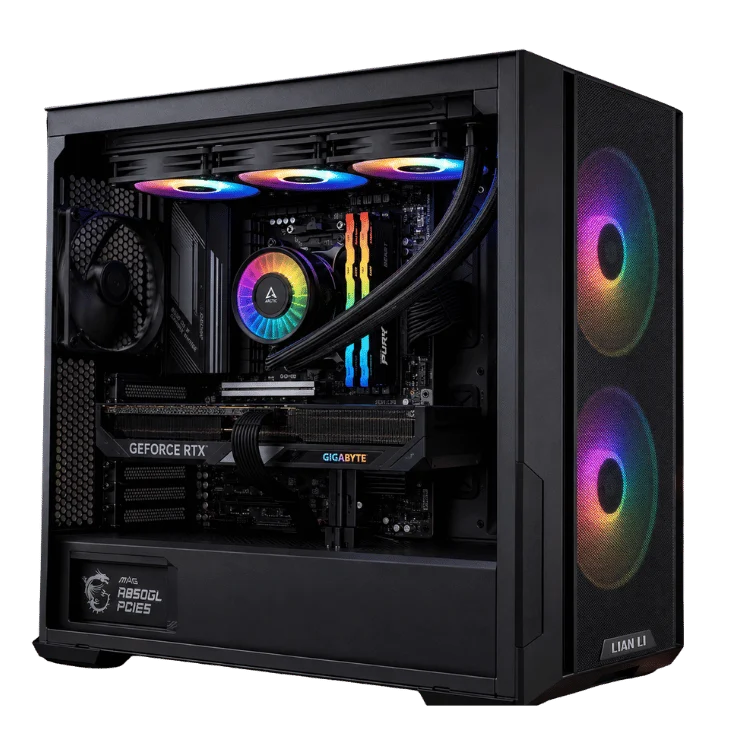
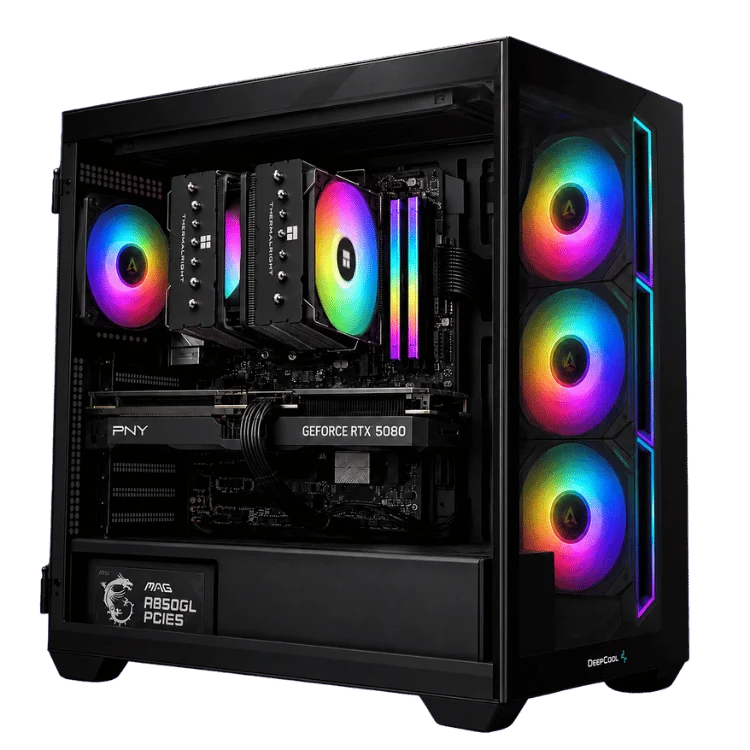
If you are buying a gaming monitor and a PC together, choose them as a pair. Our gaming PCs are grouped by resolution, which makes matching easy:
- 1080p gaming PCs for high refresh 1080p screens, such as the RTX 5060 gaming PC.
- 1440p gaming PCs for the 27-inch sweet spot, such as the 1440p RX 9070 XT gaming PC.
- 4K gaming PCs for 4K and high-end OLED displays, such as the RTX 5080 gaming PC.
Our gaming setup guide covers the desk, chair and accessories that complete the picture.
Gaming monitor FAQ
What is the best resolution for a gaming monitor?
For most people, 1440p on a 27-inch screen offers the best balance of sharpness and performance.
Is 144Hz enough?
Yes, 144Hz is a big upgrade over 60Hz and plenty for most players. Competitive gamers may prefer 240Hz or higher.
Is OLED worth it for gaming?
If your budget allows, yes. OLED offers perfect blacks, superb contrast and instant response times. Follow basic care habits to minimise burn-in risk.
Do I need G-SYNC?
Adaptive sync makes a big difference to smoothness. Most FreeSync monitors work with NVIDIA cards as G-SYNC Compatible, so a dedicated G-SYNC module is not essential.
Can I use a TV as a PC monitor?
Yes. Modern TVs with HDMI 2.1 and 120Hz support make great large gaming displays, though they are better viewed from a sofa than a desk.