Why is my computer so slow? It is one of the most common questions we hear, and the good news is that the answer is usually fixable. A computer running slow is often caused by software rather than failing hardware: too many programs launching at startup, a nearly full drive, missing updates or a browser with fifty tabs open. Sometimes, though, the hardware has simply fallen behind what modern software needs.
This guide walks through the 15 most common causes in order, from quick fixes anyone can do in a minute to deeper checks. It also shows how to run a free CPU test and benchmark PC performance, so you can see whether an upgrade or a new computer is the smarter move.
Start with the two-minute fixes
Restart properly
Windows Fast Startup means that shutting down does not fully reset everything. Choose Restart from the Start menu instead. A proper restart clears memory, finishes pending updates and often fixes a computer running slow straight away.
Check for updates
Open Settings, then Windows Update, and install everything available. Updates fix bugs that cause slowdowns and keep your PC secure.
Why is my computer so slow at startup?
If you find yourself asking “why is my computer so slow when I turn it on?”, startup is the place to look. Every program set to launch at sign-in competes for the processor, memory and drive at the same moment. Add a hard drive instead of an SSD and boot times can stretch to several minutes. Disable unnecessary startup apps, make sure Windows updates have finished installing, and consider an SSD upgrade if your PC still uses a hard drive. A computer running slow only for the first few minutes after startup usually has too much loading in the background rather than a hardware fault.
Why is my computer so slow in games?
Games stress the processor and graphics card far more than everyday apps. If games stutter or run at low frame rates, check whether the graphics driver is current, whether the PC is overheating and whether background apps are using resources. Run a CPU test and a graphics benchmark to see if the hardware performs as expected. If scores are normal but games are still slow, the hardware has simply fallen behind modern games. Our guide to what a GPU does explains how to tell whether the graphics card is the bottleneck, and a quick way to benchmark PC components is covered below.
Computer running slow after an update
A computer running slow right after a Windows update is common and usually temporary. Windows often rebuilds search indexes, optimises apps and finishes installing components in the background for a while after a major update. Leave the PC on and idle for an hour, then restart. If the slowdown persists, check for driver updates, as a new version of Windows sometimes needs updated graphics or chipset drivers. As a last resort, Windows lets you roll back a recent update from the recovery settings.
Computer running slow when browsing
When only the web feels sluggish, the browser is usually the cause. Too many tabs, heavy extensions and a large cache can all leave a computer running slow online. Clear the browser cache, disable extensions one at a time to find a culprit, and make sure hardware acceleration is turned on in the browser’s settings. Also test your internet speed, because a slow connection can feel like a slow computer.
1. Too many startup programs
Many apps quietly add themselves to startup, so they launch every time you sign in. Open Task Manager with Ctrl, Shift and Esc, choose Startup apps, and disable anything you do not need immediately, such as game launchers, chat apps and updaters. Leave security software and drivers enabled. This is one of the most effective fixes for slow boot times.
2. Not enough memory
When your PC runs out of RAM, Windows moves data to the much slower storage drive. Open Task Manager, select Performance and then Memory. If usage regularly sits above 85 per cent, you need more memory or fewer open apps. 8GB is no longer enough for comfortable everyday use. 16GB is our minimum. Our RAM guide explains how much you need.
3. An old hard drive or a full drive
If your PC still boots from a spinning hard drive, that alone can explain why your computer is so slow. Replacing it with an SSD is the single biggest speed upgrade for an older computer. Even with an SSD, a nearly full drive slows down. Keep at least 15 to 20 per cent free. Use Settings, System, Storage to find large files and turn on Storage Sense to clean up temporary files automatically.
4. Malware and unwanted software
Malware, adware and unwanted browser extensions can consume resources in the background. Run a full scan with Windows Security, then review installed apps in Settings and remove anything you do not recognise. In your browser, remove extensions you do not use.
5. Outdated drivers
Old graphics, chipset and network drivers can cause sluggishness and stutter. Install the latest drivers from your PC or motherboard maker’s website and your graphics card maker.
6. Overheating and throttling
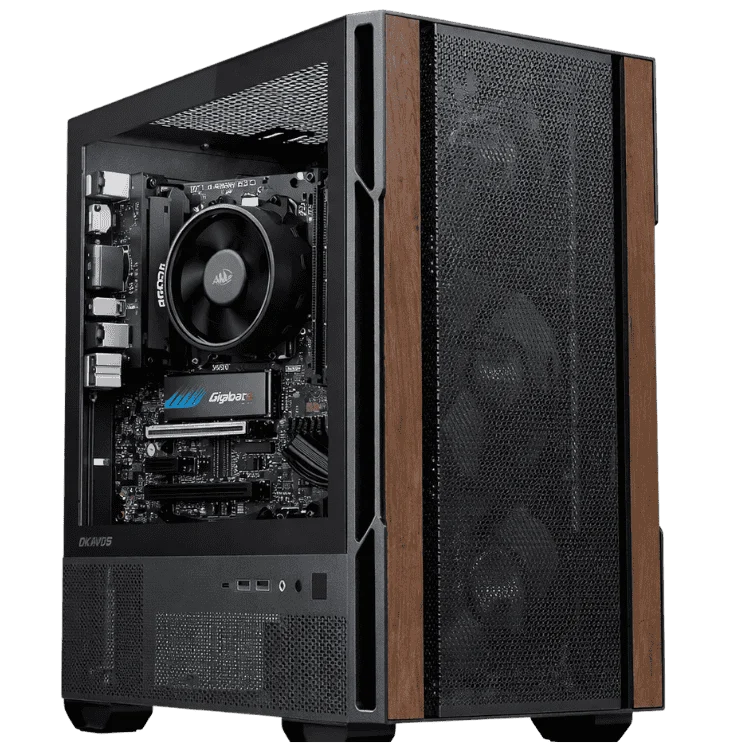
When a processor gets too hot, it slows itself down to stay safe. Dust-clogged fans and heatsinks are the usual cause. Clean the vents and check temperatures with a free tool. Our guide on how to check CPU temperature shows what normal looks like and how to fix a PC that runs hot.
7. The wrong power mode
Windows power modes can limit performance to save energy. Open Settings, System, Power and battery, and choose Best performance or Balanced. On laptops, plug in the charger when you need full speed.
8. Background syncing and scans
Cloud storage syncing, Windows updates, search indexing and antivirus scans can all make a computer running slow feel even slower while they work. Check Task Manager’s Processes tab sorted by CPU and Disk to see what is busy. Most of these tasks finish on their own, and you can schedule scans for times you are not using the PC.
9. Too many browser tabs
Modern browsers are memory hungry. Each tab, especially video, email and social media, can use hundreds of megabytes. Close tabs you do not need, use your browser’s tab sleeping or efficiency mode and avoid running two browsers at once.
10. Ageing hardware and unsupported Windows
Software grows more demanding every year. A computer that felt fast six years ago may now struggle with modern websites and apps. Windows 10 also reached its end of support on 14 October 2025, as explained on Microsoft’s end of support page. Many older PCs cannot officially run Windows 11, which leaves them without security updates.
11. A failing drive
Drives that are starting to fail can cause long freezes, slow file access and errors. Free tools such as CrystalDiskInfo show drive health. If your drive reports warnings, back up your files immediately and replace it.
12. Visual effects on older hardware
On older computers, Windows animations and transparency effects can make the interface feel sluggish. Search for “Adjust the appearance and performance of Windows” and choose Adjust for best performance, or turn off animation effects in Settings, Accessibility, Visual effects.
13. It might be the internet, not the PC
If websites and streaming are slow but local apps are fine, the issue may be your internet connection or Wi-Fi signal. Run a speed test, restart your modem and router, and try a wired connection to rule out Wi-Fi problems.
14. Corrupted system files
Corrupted Windows files can cause slowdowns and odd behaviour. Open Terminal as administrator and run sfc /scannow, then DISM /Online /Cleanup-Image /RestoreHealth. Restart once both finish.
15. Bloatware
Many new computers ship with trial software and utilities you will never use. Remove them in Settings, Apps, Installed apps. Every PC we sell is set up clean, without unnecessary extras.
How to benchmark PC performance
If the fixes above have not helped, it is time to measure. A benchmark gives you numbers you can compare with similar systems, which shows whether your hardware is performing as it should or has simply fallen behind. Here is how to benchmark PC performance for free.
- Task Manager: the Performance tab shows real-time CPU, memory, disk and GPU usage. If one component sits at 100 per cent while the PC feels slow, that is your bottleneck.
- Cinebench: Cinebench is a popular CPU test that renders a scene and gives single-core and multi-core scores you can compare online.
- Storage benchmarks: tools such as CrystalDiskMark measure drive speed, which instantly reveals an old hard drive or a struggling SSD.
- Gaming benchmarks: many games include built-in benchmarks, and 3DMark offers standard graphics tests.
How to run a CPU test
- Close all other apps and wait for the PC to be idle.
- Run a CPU test such as Cinebench in multi-core mode.
- Watch temperatures and clock speeds at the same time with a monitoring tool.
- Compare your score with published results for the same processor.
If your score is far below other results for the same chip, something is holding it back, usually heat, power settings or background software. If your score matches but the PC still feels slow for what you do, the processor itself is the limit.
Reading your CPU test results
A CPU test gives you two useful numbers. The single-core score shows how quickly the processor handles one task at a time, which matters most for everyday responsiveness and many games. The multi-core score shows how well it handles work spread across every core, which matters for video exports, rendering and heavy multitasking.
Compare both with published results for the same processor. If your CPU test results are much lower than others, check temperatures and power settings first. If they match but are low compared with modern chips, your processor is simply older, and a CPU test has confirmed that an upgrade or replacement will make a real difference.
Benchmark PC parts one at a time
The most useful way to benchmark PC performance is to test one part at a time. Test the processor with a CPU test, the drive with a storage benchmark and the graphics card with a gaming benchmark. Then compare each result with typical results for that part. The component that falls furthest behind is your bottleneck, and the one worth upgrading first. This approach stops you from spending money on parts that are not actually holding you back.
A quick slow computer checklist
- Restart properly and install all updates.
- Disable unnecessary startup apps.
- Check memory use and free storage space.
- Scan for malware and remove unwanted software.
- Clean dust and check temperatures.
- Run a CPU test and storage benchmark.
Work through that list and you will know why your computer is running slow, and whether the fix is a quick tidy-up, an upgrade or a new machine. If you are still wondering why is my computer so slow after all of it, our team is happy to help.
Upgrade or replace?
Once you know why your computer is so slow, you can decide what to do.
- Upgrade if the PC is less than five years old, the processor scores well in a CPU test and the bottleneck is storage or memory. An SSD and more RAM can transform it.
- Replace if the PC is older than six or seven years, cannot run Windows 11, uses an old processor that scores poorly, or would need several new parts. A new computer will be faster, more efficient and supported for years.
Laptop running slow?
Laptops have extra causes to check. Battery saver mode limits performance, so plug in the charger. Thin laptops throttle when vents are blocked, so use them on a hard surface. And many laptops have soldered memory that cannot be upgraded, so replacement may be the only fix if 8GB is no longer enough. Our laptop buying guide explains what to look for next time.
One more tip: if you share the computer with family members, each person’s startup apps, browser extensions and background tools add up. Giving everyone their own Windows account keeps those extras separate, so one person’s apps do not slow down the PC for everyone else. It also makes it far easier to spot which account is causing a problem.
Keeping your PC fast
- Restart at least once a week.
- Keep Windows, drivers and apps up to date.
- Review startup apps every few months.
- Keep at least 15 per cent of your drive free.
- Clean dust from vents and fans regularly.
- Only install software you need, from trusted sources.
Back up before you fix anything
Before you start uninstalling programs, resetting Windows or opening the case, back up your important files. Photos, documents and anything you would hate to lose should be copied to an external drive or a cloud service such as OneDrive. Most fixes in this guide are safe, but a failing drive can stop working at any moment, and a backup turns a potential disaster into a minor inconvenience.
Signs it is time for a new computer
- It is more than six or seven years old and struggles with everyday websites.
- It cannot run Windows 11, so it no longer receives security updates.
- It needs several upgrades at once, such as storage, memory and a new processor.
- Repairs would cost a large share of the price of a new system.
- It is loud, hot and slow even after cleaning and software fixes.
If several of these apply, investing in a new computer usually makes more sense than upgrading. You will gain speed, efficiency, security updates and a fresh warranty.
What a modern computer feels like
People who upgrade from an older machine are often surprised by the difference. A modern desktop with a fast NVMe SSD boots to the desktop in seconds, opens apps almost instantly and handles dozens of browser tabs, video calls and office files without breaking a sweat. It also uses less power and runs more quietly. If you spend hours a day at your computer, that responsiveness pays for itself in time saved and frustration avoided.
Need a faster computer?
If your PC is past saving, our home and office desktops are built for fast, reliable everyday use, with SSD storage, enough memory and Windows 11 ready to go. Popular choices include the Intel i5 home office PC, the budget office PC and the student desktop PC. Browse the full home desktop computers range, or ask us for a recommendation.
Slow computer FAQ
Why is my computer so slow all of a sudden?
Sudden slowdowns are often caused by updates running in the background, a new startup program, malware or overheating. Check Task Manager to see what is using resources.
Will more RAM speed up my computer?
If memory usage is high, yes. If memory use is low, more RAM will not help, and the bottleneck is elsewhere.
Is an SSD worth it for an old PC?
Yes, if the rest of the PC is reasonably recent. Swapping a hard drive for an SSD is the biggest speed boost for older computers.
What is a good free CPU test?
Cinebench is the most popular free CPU test. Compare your score with others using the same processor.
How often should I benchmark my PC?
Only when something feels wrong or after a major change. A quick benchmark gives you a baseline for future comparisons.