DDR5 RAM is the system memory used in every new gaming PC and most new laptops. It holds everything your computer is actively working on, from Windows and your browser tabs to the game world you are exploring. Get the amount and speed right and your PC feels fast and responsive. Get it wrong and even a powerful graphics card will stutter.
This guide explains what DDR5 RAM is, how it differs from DDR4, whether 16GB RAM is still enough or 32GB RAM is the new standard, which speeds and timings matter, what is happening with memory prices in 2026 and how to check what your own PC has installed.
What is DDR5 RAM?
RAM stands for random access memory. It is your PC’s short-term workspace: much faster than your SSD, but cleared every time the computer turns off. The processor loads the data it needs from storage into RAM, then works with it from there.
DDR5 is the fifth generation of double data rate memory. It arrived on desktops in late 2021 and is now the only memory type supported by AMD’s AM5 platform and Intel’s latest Core Ultra processors. If you are buying or building a new gaming PC today, it will use DDR5.
DDR5 vs DDR4: what changed?
DDR5 is not just a faster version of DDR4. The design changed in several useful ways.
- Higher speeds: DDR4 typically ran at 3200 to 3600 MT/s in gaming PCs. Gaming DDR5 commonly runs at 6000 MT/s or higher.
- Two channels per stick: each DDR5 module is split into two independent 32-bit sub-channels, which improves efficiency.
- On-module power management: a small power chip on each stick delivers cleaner power, helping stability at high speeds.
- On-die error correction: the memory chips correct small internal errors themselves, which helps reliability at higher densities.
- Higher capacities: larger chips make 32GB and 64GB kits common.
The two types are not interchangeable. The notch on the stick sits in a different place, so DDR5 will not fit a DDR4 slot. Moving to DDR5 means a new motherboard and processor as well.
How much RAM do you need for gaming?
This is the question we are asked most. The answer has changed over the last few years as games, browsers and chat apps have all grown hungrier.
| Capacity | Best for | Our view in 2026 |
|---|---|---|
| 8GB | Basic office work and browsing | Too little for gaming |
| 16GB | 1080p gaming, study, everyday use | The minimum for a gaming PC |
| 32GB | 1440p and 4K gaming, streaming, multitasking | The sweet spot for most gaming builds |
| 64GB | Video editing, 3D work, local AI, heavy multitasking | Worth it for creators and power users |
Is 16GB RAM enough?
16GB RAM still runs almost every game. For a budget 1080p gaming PC it is a sensible choice, especially when memory prices are high. The catch is what else is running. A modern game can use 10 to 14GB on its own, and Windows, a browser, Discord and a launcher take more. With 16GB RAM you may see the occasional stutter or longer loading when switching between apps.
Why 32GB RAM is the new standard
32GB RAM gives plenty of headroom for current games plus everything you have open in the background. It also leaves room for the larger games that keep arriving. For 1440p and 4K builds, and for anyone who streams or keeps lots of tabs open while gaming, 32GB RAM is what we fit as standard.
When 64GB makes sense
Video editing with long 4K timelines, large 3D scenes, virtual machines and running AI models locally can all use far more memory. If that is your workload, 64GB is a worthwhile investment. Our workstations are configured with this kind of work in mind.
DDR5 speed and timings explained
Memory kits are labelled with a speed and a set of timings, for example DDR5-6000 CL30.
Speed (MT/s)
The first number is the data rate in megatransfers per second. Higher speeds move more data each second. Gaming kits commonly range from 5600 to 8000 MT/s.
CAS latency (CL)
The CL number is how many clock cycles the memory takes to respond to a request. Lower is quicker. Speed and latency work together, so a 6000 CL30 kit responds faster than a 6000 CL36 kit.
The sweet spots
- AMD Ryzen 7000 and 9000: DDR5-6000 CL30 is the widely accepted sweet spot. It keeps the memory controller running in step with the memory, which gives the best latency.
- Intel Core Ultra 200S: these chips support faster memory, and kits around DDR5-6400 to DDR5-8000 work well, including CUDIMM modules designed for very high speeds.
Beyond those points, the gains in games are small and stability matters more. For AMD X3D processors in particular, the large cache reduces how often the CPU needs memory at all, which makes memory speed less critical. Our CPU cache explainer covers why.
EXPO and XMP: switch them on
New memory runs at a conservative default speed until you enable its profile in the BIOS. AMD’s version is called EXPO and Intel’s is XMP. One setting loads the rated speed and timings from the kit.
It sounds minor, but forgetting this step is one of the most common reasons a new PC underperforms. Every system we build has its memory profile enabled and tested before it leaves the bench.
Dual channel: why two sticks beat one
Most desktop motherboards have two memory channels. Using two matched sticks, one in each channel, doubles the bandwidth compared with a single stick. A 2 x 16GB kit for 32GB RAM is noticeably faster than one 32GB stick in many games.
Four sticks are possible, but on current platforms they usually force lower speeds, especially on AMD. For most gaming builds, two larger sticks are better than four smaller ones. If you might want more memory later, choose a 2 x 32GB kit up front rather than adding a second pair.
DDR5 RAM prices in 2026
Memory prices have been the biggest surprise in PC hardware over the last year. From late 2025, demand for memory in AI data centres pulled supply away from consumer products. Contract prices rose sharply, and retail prices for DDR5 RAM multiplied several times over between mid-2025 and 2026. Popular 32GB kits that were once a cheap part of a build became one of its more expensive components.
Prices have steadied at high levels during 2026 rather than falling back, and most industry forecasts expect supply to stay tight into 2027. What that means for buyers:
- Buy the right amount once. Upgrading memory later may not be cheaper, so choose the capacity you need from the start.
- Prioritise capacity over extreme speed. A fast 6000 MT/s kit is plenty. Paying a premium for exotic speeds makes even less sense now.
- Compare complete systems. When building from parts, memory is now a large line item. A complete system lets you compare the total cost of a working, tested PC rather than chasing individual part prices.
Pricing note: memory prices move quickly in a shortage. Check current pricing before buying, and be wary of very cheap listings for premium kits.
How to check how much RAM your PC has
- Press Ctrl, Shift and Esc to open Task Manager.
- Select the Performance tab, then Memory.
- The top right shows total capacity and type. Below the graph you will see the speed, how many slots are used and the form factor.
If the speed shown is around 4800 MT/s on a gaming kit rated higher, the memory profile probably is not enabled. For deeper detail, the free tool HWiNFO shows every module, its rated speed and timings.
How memory affects frame times
Average FPS gets most of the attention, but smoothness depends on frame times: how evenly frames are delivered. When a game needs data that is not in the processor’s cache, it fetches it from memory. If memory is slow, or if there is not enough of it and the system has to swap data to the SSD, some frames take much longer than others. You feel that as stutter, even when the average looks fine.
Fast DDR5 RAM in a dual-channel setup keeps those fetches quick. Enough capacity stops Windows from swapping. Together they lift the 1% lows, which is the number that best reflects how smooth a game feels.
Memory for streaming and content creation
Streaming adds an encoder, overlays, alerts and often a browser source or two on top of the game. Each one uses memory. If you stream regularly, 32GB RAM is the sensible minimum so the game never has to compete for space.
Photo and video editing benefit even more. Editing apps cache previews and effects in memory, so more capacity means smoother scrubbing and faster exports. Fast DDR5 RAM also helps with large photo libraries and timeline previews.
Choosing a DDR5 RAM kit: a quick checklist
- Capacity first. Decide between 16GB RAM, 32GB and 64GB based on what you do, using the table above.
- Two sticks. Buy a matched two-stick kit for dual-channel performance.
- Platform sweet spot. Choose DDR5-6000 CL30 for AMD or 6400 and above for Intel.
- Profile support. Look for EXPO for AMD or XMP for Intel. Many kits support both.
- Cooler clearance. If you use a large air cooler, check the height of the heatspreaders.
- Motherboard support list. Kits on your board’s qualified memory list are the safest bet.
Follow that list and almost any reputable DDR5 RAM kit will serve you well for years.
Installing memory safely
- Shut down, switch off at the wall and touch a metal part of the case to discharge static.
- Check the motherboard manual for the recommended slots. For two sticks, this is usually the second and fourth slots from the processor.
- Open the slot clips, line up the notch and press the stick straight down firmly until the clips click.
- Power on and wait. The first boot with new memory can take a minute or two while the board trains the memory. Do not switch off during this time.
- Enter the BIOS, enable EXPO or XMP, save and restart.
- Confirm the capacity and speed in Task Manager.
Troubleshooting memory problems
Memory faults can show up as random crashes, blue screens, failed boots or corrupted files. If you suspect a problem, try disabling the memory profile to see if the system stabilises at default speed, reseat the sticks, and test one stick at a time. Windows includes a basic memory diagnostic tool, and free tools such as MemTest86 run more thorough checks. If a kit fails testing at default settings, it is likely faulty and should be replaced under warranty.
If your PC was built by us, just get in touch. Memory is covered by our 12-month warranty, and we will help you diagnose the issue.
Signs you need more memory
- Memory usage sits above 85 to 90 per cent in Task Manager while gaming.
- Games stutter when you alt-tab or when a browser is open in the background.
- Your PC slows down badly with many tabs or apps open.
- Large files in editing apps load slowly or the app warns about memory.
If several of these sound familiar, more memory will help. Our guide to why a computer is slow covers other common causes too.
Upgrading memory: what to check
- Memory type: check whether your motherboard takes DDR4 or DDR5. They are not interchangeable.
- Free slots: check how many slots are used. Adding a second pair can reduce speed.
- Matching kits: mixing different kits can cause instability. A new matched kit is safest.
- Height: tall heatspreaders can clash with large air coolers.
- BIOS: update it before installing new memory, then enable EXPO or XMP.
If your PC is still on DDR4, moving to DDR5 means a new motherboard and processor. At that point a complete new system is often the simpler choice.
Laptop memory
Laptops use smaller SO-DIMM modules or memory soldered directly to the motherboard. Many thin laptops use soldered LPDDR5X, which is fast and efficient but cannot be upgraded. If you are buying a laptop, choose enough memory at purchase. 16GB is our minimum for a laptop that will be used for more than basic tasks. Our laptop buying guide explains what else to look for.
What about DDR6?
DDR6 is in development, but it is not available for desktop PCs yet and is not expected for some time. Platforms that support it will need new processors and motherboards. For anyone buying now, DDR5 RAM is the only sensible choice and will remain the standard for years.
RAM myths we hear often
More RAM always means more FPS
Only up to the point where you have enough. Going from 8GB to 16GB, or from 16GB to 32GB in demanding games, can smooth things out. Going from 32GB to 64GB will not raise frame rates in games.
RGB memory is slower
Lighting has no effect on performance. RGB and non-RGB kits with the same speed and timings perform identically.
Faster memory fixes a slow graphics card
It does not. Memory speed mainly affects the processor. If your graphics card is the bottleneck, faster RAM will make little difference.
What we fit in our gaming PCs, and why
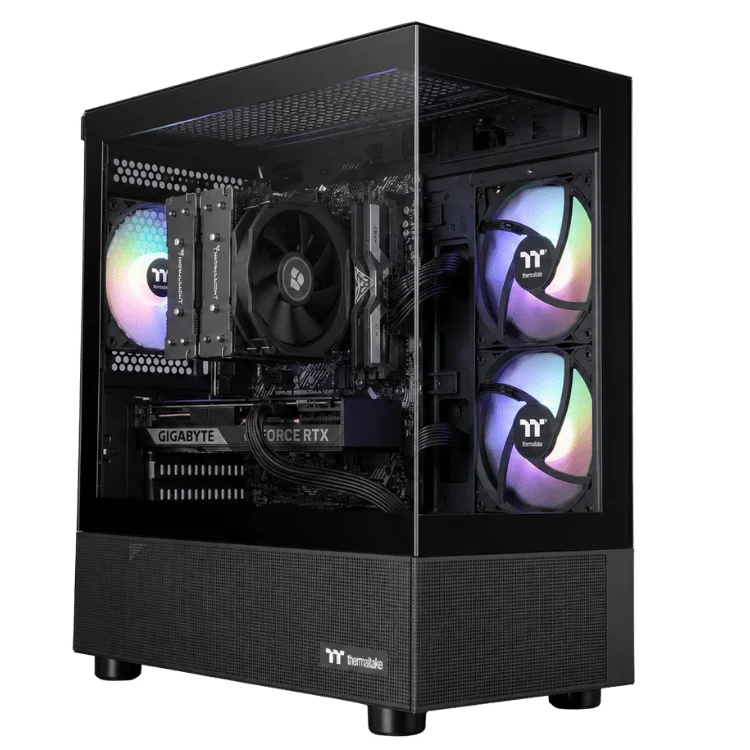
Every gaming PC we build uses dual-channel DDR5 RAM from reputable brands, with the memory profile enabled and stability tested before dispatch. Budget systems start at 16GB, and from the mid-range up we fit 32GB RAM as standard, because that is where we see the best balance of smoothness, multitasking headroom and longevity.
We choose kits for compatibility first and headline speed second. A kit that runs at its rated speed on day one and stays stable for years is worth far more than a few extra megatransfers that cause the occasional crash. On AMD builds that usually means DDR5-6000 with low latency. On Intel builds we use faster kits where the platform benefits.
If you have specific needs, such as 64GB for editing or a particular colour of heatspreader to match a theme, we can configure that in a custom build. Our team can also advise on whether upgrading the memory in your current PC is worth it, or whether your money is better spent elsewhere.
Our recommendations by build
- Budget 1080p gaming: 16GB RAM as a minimum, 32GB if the budget allows.
- 1440p gaming: 32GB RAM of DDR5-6000.
- 4K gaming and streaming: 32GB RAM, fast and low latency.
- Content creation and AI: 64GB or more.
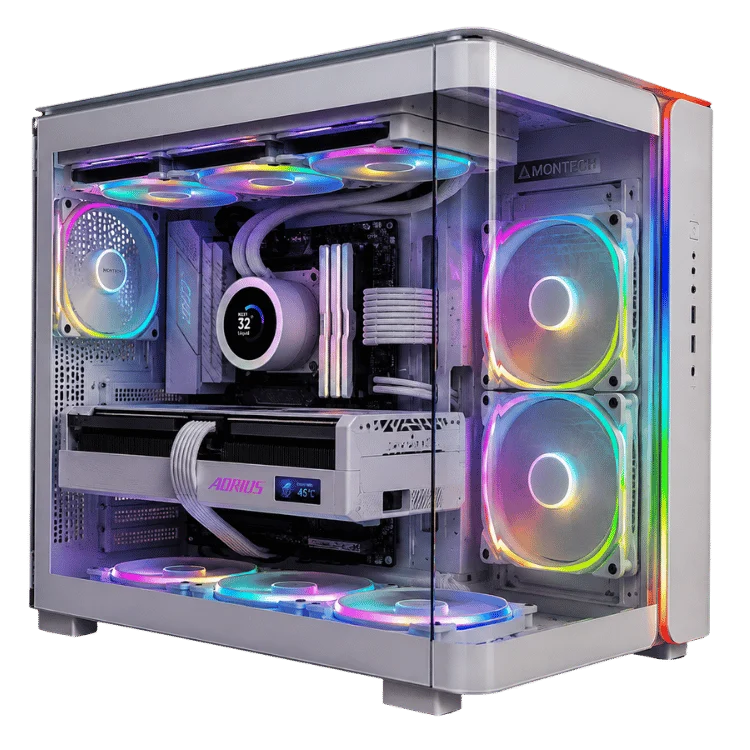
Every gaming PC on our site lists its exact memory capacity and speed. Browse our gaming PCs range, or take a look at the RGB mid tier gaming PC and the 9800X3D RTX 5080 gaming PC for examples.
DDR5 RAM FAQ
Is DDR5 RAM worth it over DDR4?
For a new PC, yes. Current platforms only support DDR5, and it is faster and more future-proof. For an existing DDR4 system, keep your memory unless you are replacing the motherboard and processor.
Is 16GB RAM enough for gaming in 2026?
For 1080p gaming and everyday use, yes. For 1440p, 4K, streaming or heavy multitasking, 32GB is the better choice.
What speed DDR5 should I buy?
For AMD Ryzen, DDR5-6000 CL30. For Intel Core Ultra, 6400 or faster works well.
Can I mix two different DDR5 kits?
It can work, but it often causes instability or forces lower speeds. A single matched kit is the safest option.
Why are DDR5 prices so high?
Demand from AI data centres has created a global memory shortage that began in late 2025. Prices are expected to stay elevated until supply catches up.