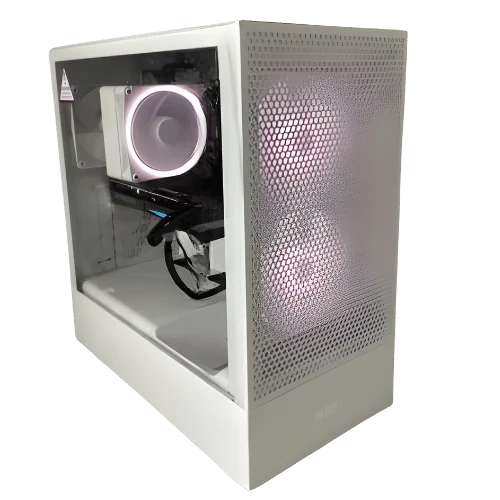
A mini PC packs a complete desktop computer into a box small enough to hold in one hand. Some are so compact they mount behind a monitor, leaving your desk completely clear. They use little power, run quietly and handle everyday work with ease. But a mini computer also has real limits, especially for gaming and upgrades, so it is worth understanding what you are getting before you buy.
This guide explains the different types of mini PC, what they do well, where they fall short, how a mini gaming PC compares with a full tower, and the specifications to check before you buy. We sell and support compact desktops for homes, students and businesses, so the advice is based on what our customers actually use them for.
What is a mini PC?
A mini PC is a desktop computer in a very small case, usually between half a litre and a couple of litres in volume. To fit that size, most use laptop-class processors, compact cooling and an external power brick. They connect to a normal monitor, keyboard and mouse just like any desktop.
The term covers several kinds of system:
- Ultra-compact mini PCs: tiny boxes, often with mobile processors and integrated graphics, designed for everyday tasks and media.
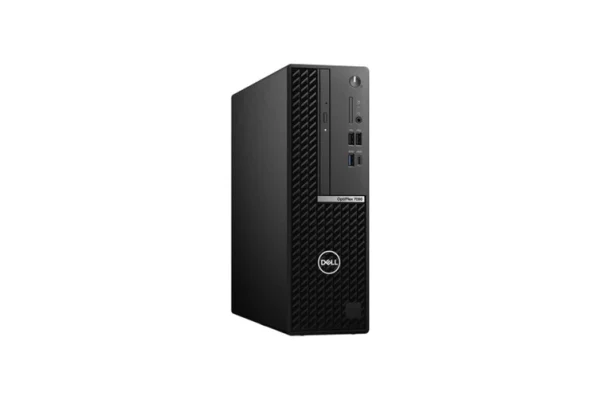
- Business micro desktops: compact, reliable machines from brands such as Dell, HP and Lenovo, designed for offices and often mountable behind a monitor.
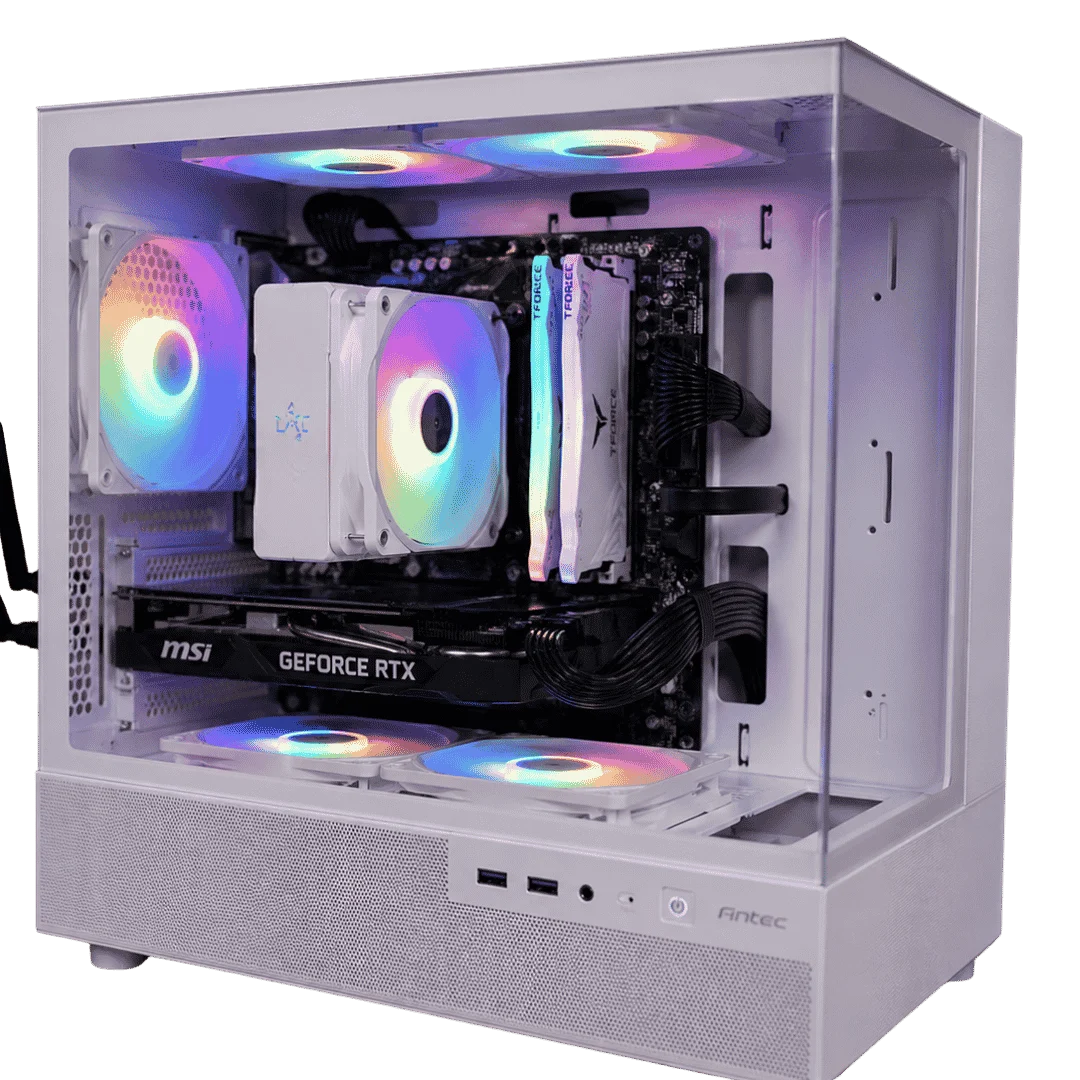
- Small form factor gaming PCs: larger than a mini PC but much smaller than a tower, built around a compact motherboard and a full graphics card.
What can a mini computer do?
For most everyday work, a modern mini computer is just as capable as a full-size desktop.
- Office work: documents, spreadsheets, email and video calls run smoothly.
- Study: research, online classes and assignments with multiple browser tabs.
- Media: streaming 4K video to a TV, music and photo libraries.
- Light creative work: photo editing and simple video editing on recent models.
- Light gaming: esports titles and older games at low to medium settings on models with stronger integrated graphics.
- Home server tasks: file sharing, backups and smart home software, thanks to low power use.
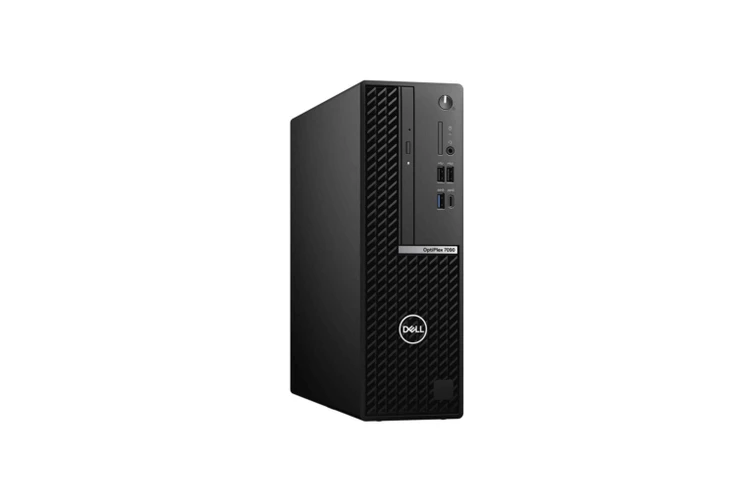
Mini PC vs a desktop tower
| Factor | Mini PC | Desktop tower |
|---|---|---|
| Size | Tiny, can mount behind a monitor | Large, needs floor or desk space |
| Power use | Very low | Higher, especially with a graphics card |
| Noise | Usually quiet, can whine under load | Can be near silent with large fans |
| Gaming | Limited by integrated graphics | Full graphics cards for any game |
| Upgrades | Memory and storage at best | Almost every part can be upgraded |
| Ports | Fewer, often USB-C and HDMI | Many USB ports and expansion slots |
| Cooling | Small fans, can throttle under long loads | Plenty of headroom |
If your work is light and space is tight, a mini PC is an excellent choice. If you game seriously, edit video or want a machine you can upgrade for years, a tower is the better buy. Browse our desktop computers range to compare both.
Can a mini PC play games?
It depends on the processor. Many mini PCs use integrated graphics, which share memory with the processor. Recent AMD Ryzen chips with Radeon graphics and Intel Core Ultra chips with Arc graphics are surprisingly capable in esports titles and older games at 1080p with low to medium settings. A new generation of AMD Ryzen AI Max processors brings much stronger integrated graphics again, though at a higher price.
What a typical mini PC cannot do is run the latest big-budget games at high settings. For that, you need a dedicated graphics card, which brings us to the mini gaming PC.
What is a mini gaming PC?
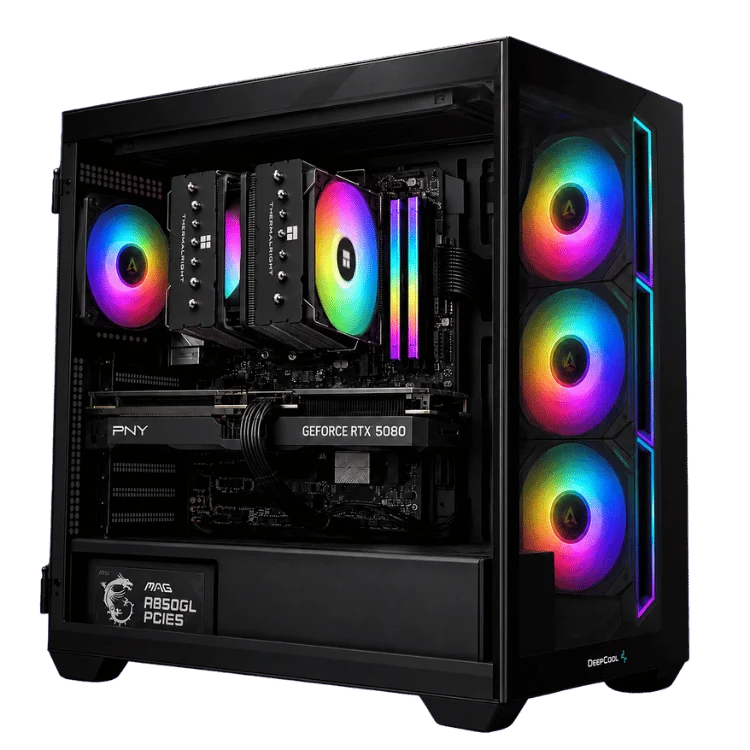
A mini gaming PC is a small form factor desktop with a full graphics card inside. Built around a Mini-ITX motherboard in a compact case, it can be a third or less of the size of a mid-tower while still running an RTX 5070 or even more powerful cards. The trade-offs are higher cost for specialised parts, more careful cooling, and fewer upgrade options.
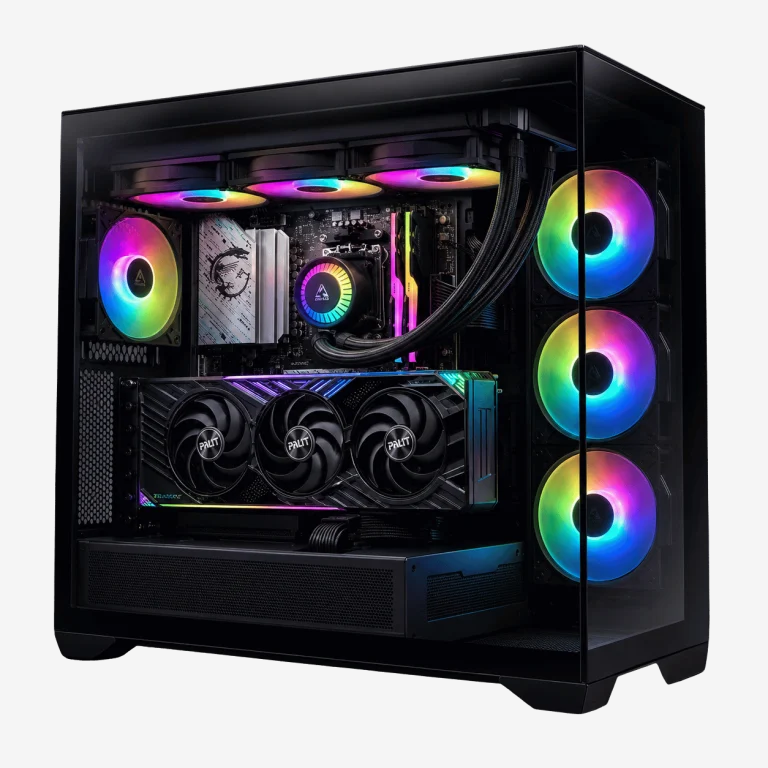
For players with limited space who still want strong gaming performance, a mini gaming PC is a great solution. For most gamers, though, a standard mid-tower is cheaper, quieter and easier to upgrade. Our gaming PCs range covers both.
External graphics as an alternative
Some mini PCs support external graphics cards through USB4, Thunderbolt or OCuLink connections. It works, but you lose some performance through the connection and you end up with a second box on the desk, which defeats part of the purpose. It suits people who already own a mini computer and want to add gaming occasionally.
What to check before you buy a mini PC
Processor
Look for a recent generation processor. For office and study, a current Intel Core i5, Core Ultra 5 or AMD Ryzen 5 is plenty. For light gaming and creative work, look for stronger integrated graphics.
Memory
16GB is our minimum for a mini PC that will be used for more than basic browsing. Check whether the memory is upgradeable (SO-DIMM slots) or soldered. Soldered memory cannot be changed later, so buy enough upfront.
Storage
A 512GB NVMe SSD is the minimum we recommend, with 1TB better for photos and games. Some models have a second M.2 slot for easy expansion.
Ports and connectivity
Count the ports you need. Check for enough USB-A ports for older accessories, USB-C or USB4 for fast devices and displays, HDMI and DisplayPort for monitors, Ethernet for reliable networking and Wi-Fi 6 or newer.
Mounting and power
If you want to hide the mini PC behind a monitor, make sure it includes a VESA mount and your monitor supports one. Most mini PCs use an external power brick, so plan space for it.
Noise under load
Small fans have to spin faster to move the same air, so some mini PCs become noticeable under sustained load. Reviews that mention noise are worth reading if the PC will sit in a quiet room.
Warranty and support
Buy from a seller that offers clear warranty terms and local support. Australian consumer guarantees apply, but dealing with a local business makes any claim far simpler.
Mini PC vs all-in-one vs laptop
A mini PC is not the only space-saving option.
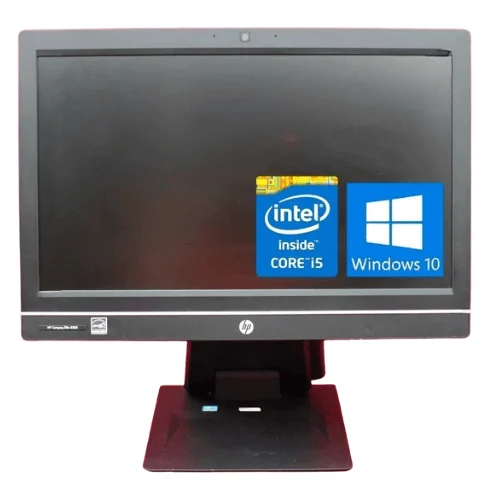
- All-in-one PC: the computer is built into the monitor, so there is only one box and one power cable. Great for kitchens, reception desks and family rooms. Our HP all in one PC is a popular choice.
- Laptop: portable, with a built-in screen and battery. Ideal if you work in more than one place. Our laptop buying guide explains what to look for.
- Compact desktop: a small tower offers more performance and upgradeability than a mini PC while still saving space.
Best uses for a mini PC
Home office
Mount a mini PC behind your monitor and your desk stays clear for paperwork. Low power use keeps running costs down for a machine that is on all day.
Students
A compact desktop fits on a small study desk and handles assignments, research and video lessons with ease. Our laptops for students are worth comparing if portability matters.
Media centre
A mini PC beside the TV can stream video, play local media and run light games on the big screen.
Business fleets
Micro desktops are easy to deploy, secure and maintain in quantity, which is why so many offices use them.
How compact computers stay cool
Fitting a whole computer into a tiny box is an engineering challenge. Most compact systems use efficient laptop-class processors that produce far less heat than desktop chips, a copper heatsink with one small blower fan, and vents positioned to pull cool air through the shortest possible path. Some fanless designs use the metal case itself as a heatsink.
The trade-off is sustained performance. Under a short burst of work, a small system boosts to high speeds. Under a long, heavy load, such as exporting a long video, it may slow down to stay within its temperature limit. For everyday tasks you will never notice. For long rendering jobs, a tower with a larger cooler holds its speed far better.
Placement matters too. Keep vents clear, avoid enclosing the unit in a drawer or cabinet, and if you mount it behind a monitor, leave a little space for air to circulate.
Setting up a small desktop, step by step
- Plan the position. Decide whether it will sit on the desk, under a monitor stand or on a VESA mount behind the screen.
- Mount it if needed. Attach the VESA bracket to the monitor, then slide the computer into place.
- Connect the display. Use HDMI, DisplayPort or USB-C depending on your monitor. USB-C can sometimes carry video, data and power in one cable.
- Connect peripherals. Plug in the keyboard, mouse, webcam and any USB devices. A small USB hub helps if ports are limited.
- Connect the network. Ethernet gives the most reliable connection. Otherwise, connect to Wi-Fi during setup.
- Run Windows setup and updates. Install all Windows updates and any manufacturer driver updates before installing your apps.
- Set up backups. Turn on OneDrive or another backup service, or connect an external drive for regular backups.
Connecting multiple monitors
Many compact computers support two or even three displays, which is a huge productivity boost for office work. Check how many video outputs the system has and which standards they support. A typical setup might use one HDMI port and one DisplayPort or USB-C output. If your monitors have different connections, simple adapters or a USB-C dock solve the problem. For high refresh rate or 4K monitors, check that the outputs support the resolution and refresh rate you need.
Security and management for businesses
Business-grade compact desktops are built for fleets. They typically include a TPM security chip for Windows 11 features such as BitLocker drive encryption, remote management tools for IT teams, and a lock slot to secure the unit to a desk. Because they are small and light, they are easy to swap if one ever fails, and their low power use reduces running costs across a whole office. If you are equipping a small business, ask us about matching configurations so every desk runs the same, easy-to-support setup. Our office computers range is a good starting point.
Running costs: a quick comparison
Power use adds up for a computer that runs all day. You can estimate yearly running cost with a simple formula: watts multiplied by hours of use per day, multiplied by 365, divided by 1,000, then multiplied by your electricity price per kilowatt-hour.
For example, a compact system averaging 20 watts for eight hours a day uses about 58kWh a year, roughly A$19 at 33 cents per kWh. A desktop averaging 120 watts over the same hours uses about 350kWh, roughly A$116. A gaming PC under load uses far more again. For an always-on home office computer, that difference is meaningful over several years.
Common mistakes when buying a small computer
- Buying 8GB of soldered memory. It cannot be upgraded later, and it will feel slow within a year or two.
- Ignoring the ports. Count your devices first, especially USB-A accessories and monitors.
- Expecting high-end gaming. Integrated graphics are great for light games, not the latest blockbusters at high settings.
- Choosing an unknown brand with no local support. A cheap import can be hard to repair or claim under warranty.
- Forgetting the power brick. Plan desk or under-desk space for the external power supply.
Accessories that make compact setups better
A few inexpensive extras turn a tiny computer into a great workstation. A monitor arm frees up even more desk space. A USB-C dock adds ports and lets you connect a laptop to the same setup. A wireless keyboard and mouse keep cables to a minimum. And a small external SSD gives fast, portable storage for backups and large files.
Is a mini PC worth it?
For office work, study, media and light gaming, a mini PC is absolutely worth it. It saves space, uses little power and is quiet in daily use. For serious gaming, demanding creative work or anyone who wants to upgrade over time, a tower or a dedicated mini gaming PC is the better choice.
If your current computer is ageing, note that Windows 10 reached its end of support on 14 October 2025, as explained on Microsoft’s end of support page. Many people replacing an older tower find a compact Windows 11 machine is all they need.
Software tips for compact systems
Small computers feel fastest when they are not weighed down by unnecessary software. Remove trial apps you do not need, limit the number of programs that launch at startup and keep Windows and drivers up to date. If your system has limited storage, use cloud storage for documents and photos so the internal SSD keeps plenty of free space, which helps performance. For family computers, a separate Windows account for each person keeps settings and files tidy and makes parental controls easy.
When to choose a tower instead
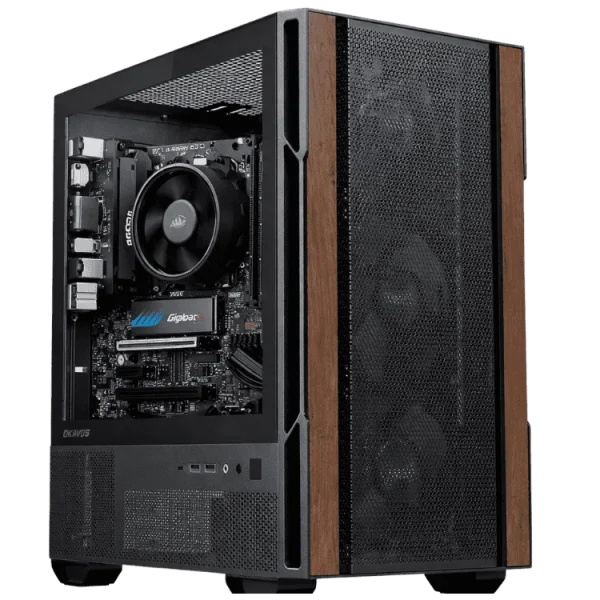
A small form factor is not always the right answer. Choose a full desktop tower if you want to play modern games at high settings, edit 4K video or work in 3D apps, because a tower can hold a powerful graphics card and a large cooler. A tower also makes sense if you like to upgrade over time, need lots of internal storage, or want the quietest possible operation under heavy load. And if you need to work away from a desk, a laptop is the more flexible choice. Matching the computer to the job will always serve you better than choosing on size alone.
Looking after a small computer
Compact systems need very little maintenance, but a few habits keep them running smoothly for years. Every few months, check the vents for dust and clean them gently with compressed air while the computer is switched off. Keep the power brick somewhere ventilated rather than buried under papers. Restart the computer occasionally rather than leaving it in sleep for weeks, which lets updates finish and clears out temporary files. And keep an eye on free storage space, because a nearly full SSD slows everything down. Treated well, a quality business-grade unit can easily last five years or more in daily use.
Our compact desktops
We stock compact and space-saving systems for home, study and business:
- Dell OptiPlex 7000 micro desktop: a business-grade mini PC that fits behind a monitor.
- HP all in one PC: computer and screen in one tidy unit.
- Student desktop PC: a compact desktop for study and everyday use.
- Home and study desktop PC: a reliable family computer for work and school.
Every system is tested before dispatch and covered by our 12-month warranty. If you are not sure which suits you, send us a message with how you plan to use it.
Mini PC FAQ
Are mini PCs reliable?
Yes. Business micro desktops in particular are designed to run all day for years. As with any computer, keep vents clear of dust.
Can I upgrade a mini PC?
Usually only the memory and storage, and sometimes not even the memory if it is soldered. Choose enough of both when you buy.
Is a mini gaming PC as fast as a tower?
With the same parts, performance is similar, but compact cases can run warmer and louder. Towers are cheaper and easier to upgrade.
How much power does a mini PC use?
Far less than a gaming tower. Many use under 20 watts while browsing, which keeps running costs low.
Can a mini PC run Windows 11?
Yes. Any modern mini PC with a supported processor runs Windows 11.