A great gaming setup is about more than a fast computer. The screen you look at, the chair you sit in, the desk you lean on and the way your room is lit all shape how much you enjoy every session. Get them right and you will play longer, more comfortably and with better results. Get them wrong and even a top-end PC can feel disappointing.
This guide walks through every part of a PC gaming setup, from choosing the PC and monitor to desks, chairs, audio, lighting, cable management and networking. We have included budget tiers, space-saving ideas and the common mistakes we see, so you can build a PC setup that suits your room and your wallet.
Step 1: Start with the right PC
The PC is the engine of your gaming setup, so match it to the games you play and the screen you will use.
- 1080p esports and popular titles: an RTX 5060 class system delivers high frame rates for less.
- 1440p high refresh: an RTX 5070 or RTX 5070 Ti system is the sweet spot for most players.
- 4K and maximum settings: an RTX 5080 or RTX 5090 system with a fast X3D processor.
Our guide to the best gaming PC in Australia breaks down each tier, and you can compare complete systems in our gaming PCs range.
Step 2: Choose a monitor that matches the PC
Your monitor is the window into everything your PC can do. Pair resolution and refresh rate with your graphics card so you are not paying for frames you cannot see.
- 1080p at 144Hz to 240Hz for budget and competitive builds.
- 1440p at 144Hz to 240Hz for the best balance of sharpness and speed.
- 4K at 144Hz and above for high-end systems and cinematic games.
Size matters too. 24 to 25 inches suits 1080p competitive play, 27 inches is ideal for 1440p and 27 to 32 inches works well for 4K. Our gaming monitor guide explains panel types, HDR and adaptive sync in detail, and independent testers such as RTINGS monitor reviews are a useful way to compare specific models before you buy.
Step 3: Pick a desk with enough room
A cramped desk is one of the most common problems we see. Aim for a desk at least 120cm wide and 60 to 70cm deep, so your monitor sits at a comfortable distance and your mouse has space to move. Deeper desks are better for large monitors and ultrawides.
Fixed or sit-stand?
A sit-stand desk lets you change position during long sessions, which is great for your back. If you choose one, check its weight rating covers your monitors and PC, and look for a model that stays stable at standing height.
Where should the PC go?
Put the tower on the desk if you want to show it off, or on a stand beside the desk to keep it off the carpet and away from dust. Avoid enclosed cabinets, which trap heat.
Step 4: Get the chair right
You will spend hours in your chair, so it deserves as much thought as your graphics card. Look for adjustable seat height, adjustable armrests, good lumbar support and a seat depth that suits your legs. Many people find a quality ergonomic office chair more comfortable than a racing-style gaming chair, so try before you buy if you can.
Step 5: Set up good ergonomics
A few simple adjustments make long sessions far more comfortable.
- Monitor height: the top of the screen should sit at or slightly below eye level.
- Viewing distance: roughly an arm’s length away for a 27-inch monitor.
- Elbows: bent at about 90 degrees with forearms level and shoulders relaxed.
- Feet: flat on the floor or on a footrest, with knees at hip height.
- Wrists: neutral, not bent upward. A wrist rest can help with keyboards.
A monitor arm makes it easy to set the perfect height and distance, and frees up desk space at the same time.
Step 6: Choose your keyboard
Mechanical keyboards are popular in any gaming setup for their feel and durability. Linear switches are smooth and quiet, tactile switches give a gentle bump, and clicky switches are loud and satisfying. Size matters as well. Full-size boards include a number pad, while tenkeyless and 75 per cent layouts leave more room for your mouse.
Step 7: Choose your mouse and mousepad
A comfortable mouse that suits your grip style matters more than headline sensor numbers. Lightweight mice are popular for fast shooters, while heavier, shaped mice suit strategy and MMO players who use extra buttons. Pair it with a large mousepad or desk mat so you have room for wide movements.
Step 8: Sort out your audio
Headset
A good headset is the best choice for competitive games and late-night sessions. It lets you hear footsteps clearly and keeps noise down for the rest of the house. Wireless models are convenient, while wired models avoid charging and latency.
Speakers
Speakers make single-player games and films more immersive. A compact 2.1 set with a subwoofer works well in most rooms.
Microphone
Headset microphones are fine for team chat. If you stream or record, a separate USB microphone on an arm sounds far better.
Step 9: Add controllers if you need them
Racing, sports and many action games feel better on a controller. Most modern controllers connect to a PC by USB or Bluetooth. Keep one within reach as part of your PC gaming setup, even if you mainly use a keyboard and mouse.
Step 10: Plan your lighting
Lighting affects comfort as much as looks. Playing in a dark room with a bright screen causes eye strain. A bias light strip behind the monitor reduces that strain and makes blacks look deeper. Add soft ambient room lighting rather than a single harsh overhead light.
RGB lighting on your PC, keyboard and mouse can be synced so everything matches. Pick a theme you like and keep it consistent for a clean, deliberate look.
Step 11: Manage your cables
Tidy cables make any PC setup look better and make cleaning easier. Use an under-desk cable tray for power boards and adapters, Velcro ties to bundle cables, and a cable sleeve for the run from the desk to the PC. Every PC we build is cable-managed inside the case, so the outside is all you need to sort.
Step 12: Get a reliable internet connection
For online games, a stable connection matters more than raw download speed. Wired Ethernet is always best for low and consistent latency. If you must use Wi-Fi, a modern Wi-Fi 6 or Wi-Fi 7 router and a PC with a matching adapter helps, and placing the router closer to your gaming setup makes a big difference.
Step 13: Protect your gear
A quality surge-protected power board protects your PC and monitor from power spikes. If you live in an area with frequent outages or storms, a small uninterruptible power supply gives you time to save and shut down safely.
Step 14: Add streaming gear if you create content
If you stream or make videos, add a webcam, a good microphone and some soft lighting for your face. A second monitor is incredibly useful for watching chat and stream software while you play. Make sure your PC has enough processor cores and memory to game and stream at the same time.
Step 15: Make it yours
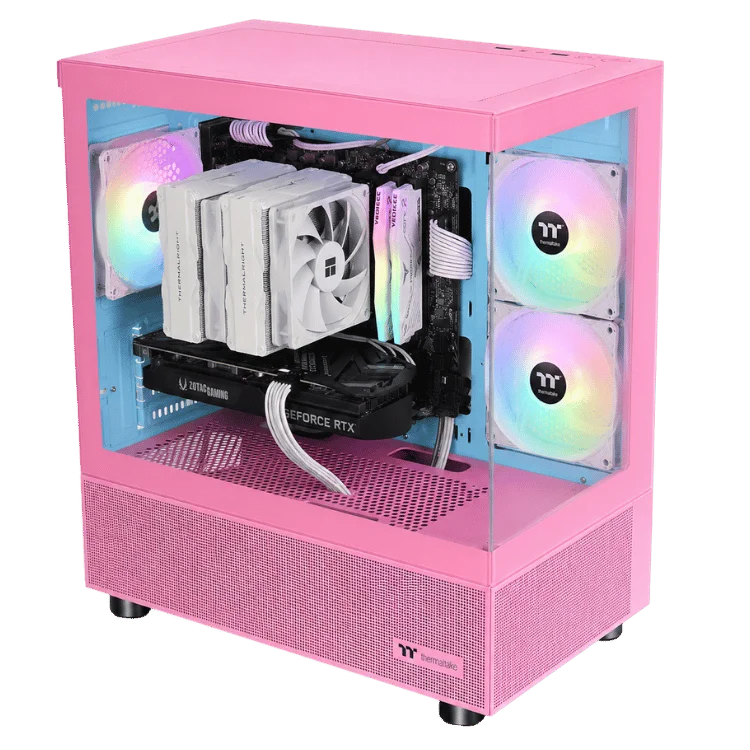
Your gaming setup should reflect your style. Matching colours, a themed desk mat, a few figures or posters and a plant or two turn a desk into a space you love spending time in. We offer pink gaming PCs, white builds and black builds so your PC can match the look you want.
Gaming setup ideas by room
Bedroom gaming setup
A bedroom gaming setup needs to be compact and quiet. Choose a desk that fits the wall without blocking walkways, use a headset rather than speakers late at night and pick a PC with quiet fan curves. Warm, dimmable lighting helps the space work for both gaming and sleep.
Lounge room gaming setup
If your PC connects to the TV, a compact case beside the TV cabinet, a wireless keyboard and mouse or a lap board, and a controller make couch gaming easy. Make sure the PC has open space for airflow rather than sitting inside a closed cabinet.
Study or shared office
A PC setup that doubles for work and play benefits from a sit-stand desk, a monitor arm and a neutral look during the day. RGB lighting that can be switched off or set to a calm colour keeps the room professional for video calls.
Dedicated games room
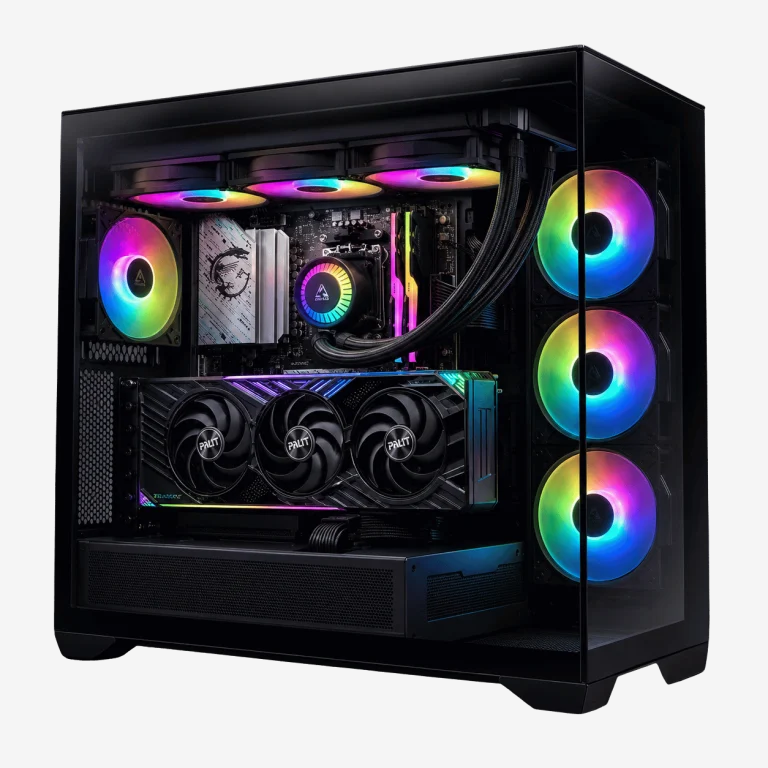
With a room to yourself, go all out: a large desk, multiple monitors, acoustic panels, ambient lighting and a comfortable second seat for friends. A dedicated gaming setup is also the place for a showpiece PC in a panoramic glass case.
Dual monitor PC setup tips
A second monitor is one of the best upgrades for any PC setup. Use the main screen for gaming and the second for chat, guides, music or stream controls. Match the heights of both screens, place the main one directly in front of you and angle the second towards you. A dual monitor arm keeps everything neat and adjustable. If the second screen is only for chat and video, a cheaper 1080p model is perfectly fine.
Where to spend first
If your budget is limited, build your gaming setup in this order: a capable PC, a monitor that matches it, a comfortable chair, then a keyboard, mouse and headset. Lighting, desk accessories and decorations can come later. A great chair and monitor will improve every session, while flashy extras are nice-to-haves.
Console vs PC gaming setup
A console is simple, but a PC gaming setup gives you far more choice. You can play at higher frame rates, use mods, choose from a huge library of games across several stores, and use the same machine for study, work and content creation. A PC can also be upgraded over time rather than replaced every generation. Many players keep a controller in their PC gaming setup so they get the best of both worlds.
Upgrading your gaming setup over time
A gaming setup is never really finished. Most people start with the essentials and improve one piece at a time. Common upgrades include a higher refresh rate monitor, a better chair, a monitor arm, a microphone for streaming and, eventually, a faster graphics card. If you buy a well-balanced PC to begin with, with a good power supply and room to grow, those upgrades are easy. Plan your PC setup with the next step in mind and every upgrade will feel worthwhile.
Your complete gaming setup checklist
- Gaming PC matched to your games and monitor
- Monitor at the right size, resolution and refresh rate
- Desk at least 120cm wide and 60cm deep
- Adjustable, supportive chair
- Keyboard, mouse and large mousepad
- Headset or speakers, plus a microphone if you stream
- Bias lighting and soft room lighting
- Cable tray, ties and a surge-protected power board
- Wired internet or a strong Wi-Fi signal
Tick everything off and you will have a gaming setup that is comfortable, reliable and ready for long sessions.
Gaming setup budget tiers
| Tier | PC | Monitor | Extras |
|---|---|---|---|
| Starter | RTX 5060 class | 24-inch 1080p 144Hz+ | Basic headset, keyboard and mouse |
| Mid-range | RTX 5070 or 5070 Ti class | 27-inch 1440p 165Hz+ | Mechanical keyboard, quality mouse, comfortable chair |
| High-end | RTX 5080 or 5090 class | 27 to 32-inch 4K or 1440p OLED | Monitor arm, premium audio, sit-stand desk |
Choosing a case style and colour theme
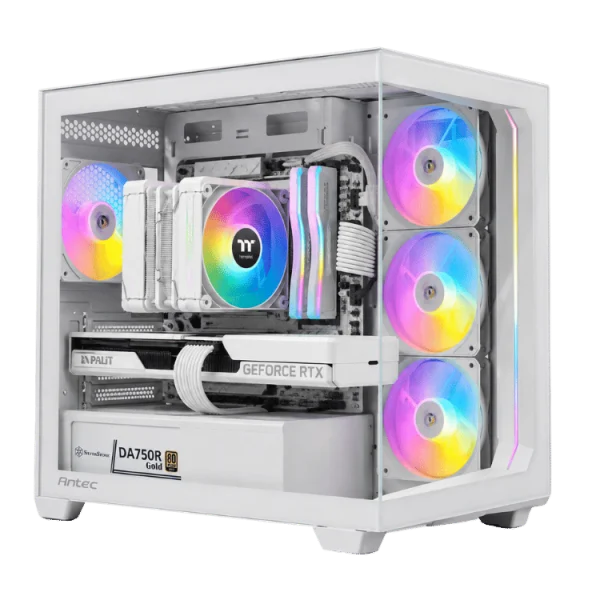
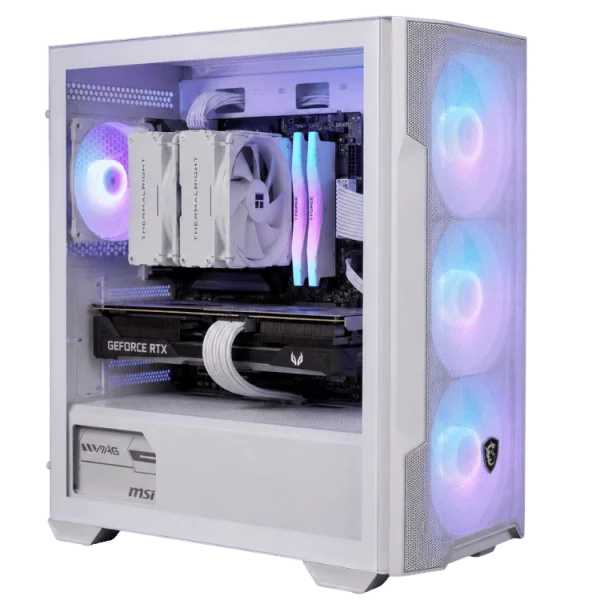
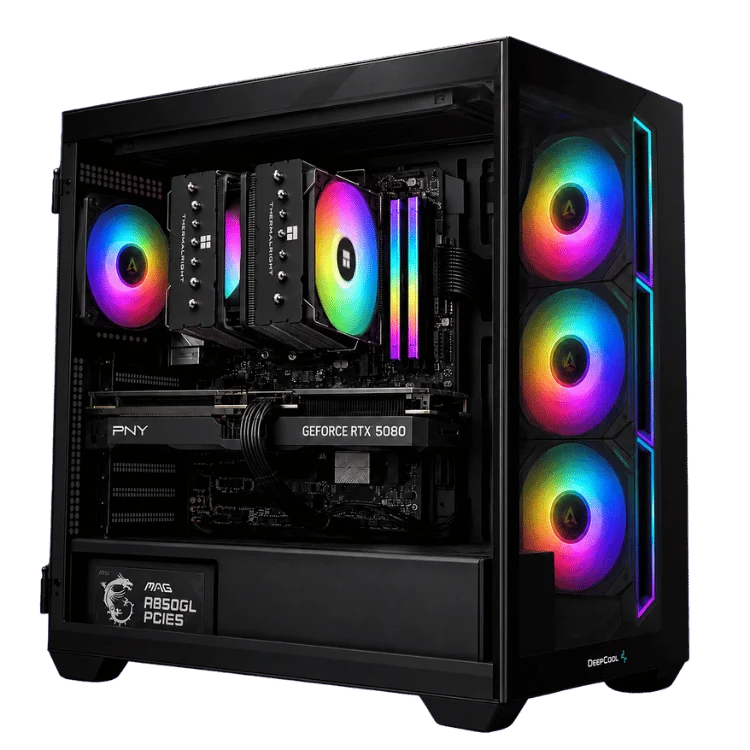
The case sets the tone for your whole desk. Panoramic glass cases show off every component and look stunning with RGB fans, but they need a tidy build inside. Mesh-fronted cases prioritise airflow and stay cooler and quieter under load. Compact cases save space but limit upgrades.
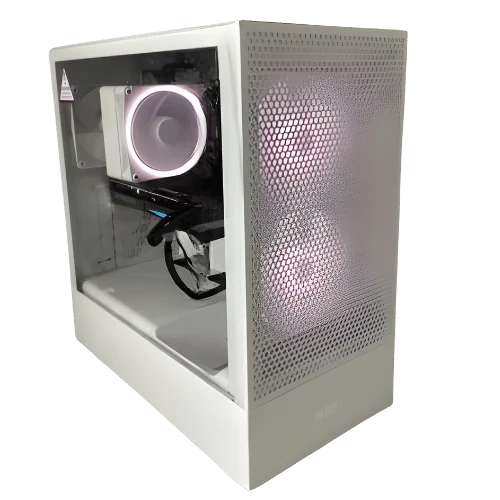
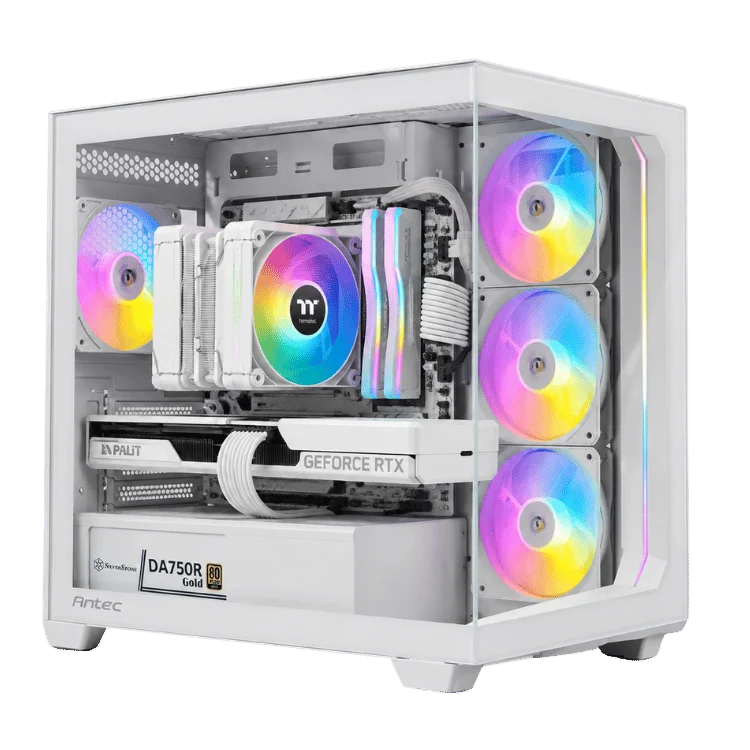
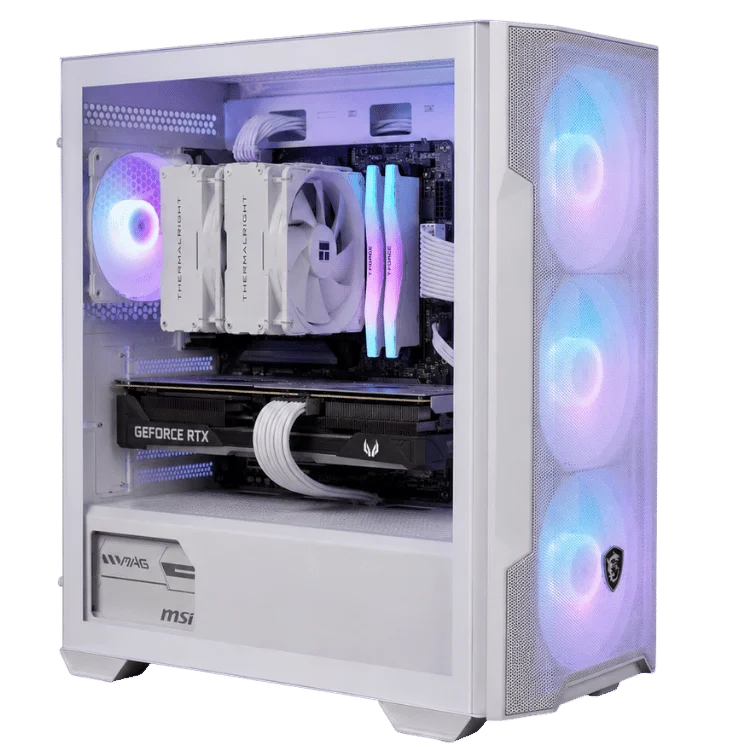
Colour is personal. All-black builds look sleek and hide dust well. White builds look bright and modern, and pair beautifully with light wood or white desks. Pink and pastel builds are fun and increasingly popular. Whatever you choose, carry the theme through to the keyboard, mouse, desk mat and lighting for a cohesive look.
Keeping noise down
Noise matters in any shared home. A well-built PC should be close to silent at the desktop and only become noticeable under heavy load. Good fan curves, quality fans, a properly sized cooler and a case with decent airflow all help. Placing the PC on the desk rather than in a corner also stops sound from bouncing off nearby walls. If you game late at night, a frame rate cap in lighter games cuts heat and fan noise significantly.
Every system we build is tuned for low noise before it ships, so your new PC fits comfortably into a bedroom, study or lounge without becoming a distraction.
Small space gaming setup ideas
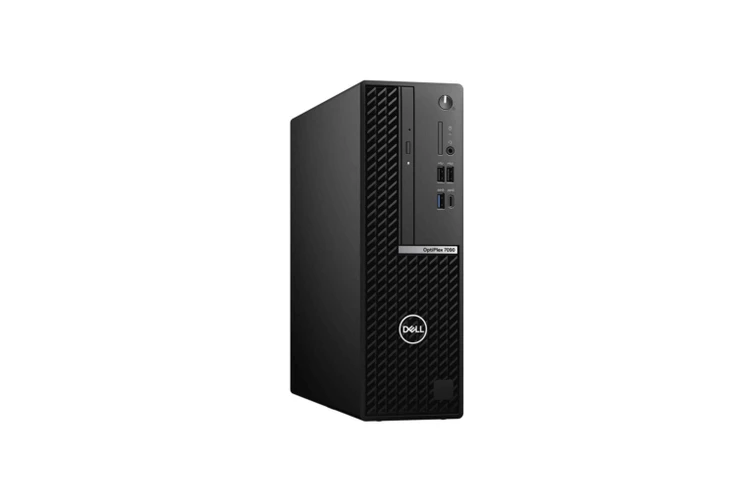
Not everyone has a spare room. In a small space, a compact case or mini PC, a monitor arm and a wall-mounted shelf can free up a lot of room. A 27-inch monitor on an arm takes far less desk depth than one on a stand. Our mini PC guide covers small desktop options in detail.
Look after yourself
Long sessions are more fun when you feel good. Take a short break every hour, stretch your shoulders and wrists, keep water at the desk and follow the 20-20-20 rule: every 20 minutes, look at something 20 feet away for 20 seconds. Your eyes and back will thank you.
Common gaming setup mistakes
- Pairing a fast PC with a 60Hz monitor.
- Choosing a desk that is too shallow for the monitor.
- Buying a chair for looks rather than comfort and adjustability.
- Putting the PC in a cabinet or on thick carpet where it cannot breathe.
- Relying on weak Wi-Fi for competitive online games.
- Ignoring room lighting and straining your eyes in the dark.
Our gaming PCs for every setup
Whatever style and budget you have in mind, we have a hand-built system to suit. A few popular picks for a new gaming setup:
- RGB mid tier gaming PC: colourful lighting for a 1440p setup.
- White esports gaming PC: high frame rates in a clean white case.
- White Ryzen 5 RTX 5070 gaming PC: great 1440p value in white.
- RTX 5080 gaming PC: a 4K centrepiece for a high-end setup.
Every PC is built, cable-managed and tested in Gregory Hills, NSW, and backed by our 12-month warranty.
Gaming setup FAQ
What do I need for a PC gaming setup?
A gaming PC, a monitor, a keyboard, a mouse, a headset or speakers, a desk and a comfortable chair. Lighting, a monitor arm and cable management are great additions.
How much does a good gaming setup cost?
It depends on the tier. The PC is usually the largest cost, followed by the monitor and chair. Start with the PC and monitor, then add accessories over time.
Is a gaming chair better than an office chair?
Not necessarily. Comfort and adjustability matter most. Many people prefer a quality ergonomic office chair.
Should my PC go on the desk or the floor?
On the desk or on a raised stand is best. It keeps the PC away from dust and pet hair on the floor and makes cables easier to manage.
Wired or wireless peripherals?
Modern wireless mice and headsets have very low latency and are great for most players. Wired gear never needs charging and is the safe choice for competitive play.